

Guides
How to Find a Saved Link When You Don’t Remember the Title
A practical recovery method for finding a saved article or page from a partial memory, even when its title and exact words are gone.
If you do not remember a saved page’s title, stop trying to reconstruct it. Write down the idea, source, format, or moment you do remember, then narrow the search one clue at a time.
That is the short version of the method in this guide. It works whether your link is in a browser, a read-later app, a notes system, or a dedicated bookmark manager. The tools differ, but the recovery problem is the same: your memory kept the meaning while the software often expects the label.
Start with the memory you actually have
Suppose you saved an article about animating the change from one page to another without adding a framework. Weeks later, you cannot remember whether the title said “page transitions,” “navigation animation,” or something else.
Do not begin by guessing titles. Begin with a plain sentence:
Article about animation between pages, probably from Mozilla, with a browser API and no framework.
This gives you four useful clues: the concept, a possible source, the kind of technology, and an exclusion.
A 2021 case study of tip-of-the-tongue movie identification found that searchers combined memories of a movie’s content, the context in which they had encountered it, and previous attempts to find it. The domain was movies, not saved webpages, but the study is useful here because it shows how a missing name does not erase every other retrieval clue.
Treat your uncertain details as clues, not requirements. “Probably Mozilla” should help you narrow the results later; it should not eliminate a good result from another source at the start.
Use this recovery ladder
Move from quick, exact searches to broader ones. Stop as soon as you find and verify the page.
| Step | Search with | Example |
|---|---|---|
| 1 | A distinctive word you are confident about | animation |
| 2 | The idea in your own words | animation between pages |
| 3 | One contextual anchor | animation between pages mozilla |
| 4 | A source, type, area, or date filter | site:mozilla.org animation |
| 5 | Saved page text, notes, or tags | no framework |
| 6 | Meaning-based search | article about smooth navigation without a framework |
The order matters. A rare phrase or known source is strong evidence. A broad semantic similarity is useful, but it needs more verification.
Operator names vary by tool. If site: is not supported where you search, choose the equivalent source or domain filter instead.
1. Check the browser before adding another tool
If the page is a normal browser bookmark, use the bookmark manager or address bar first. Chrome documents how to find bookmarks from the address bar, Bookmark Manager, or all-bookmarks navigation panel. Firefox can restrict address-bar results to bookmarks with * followed by a space, and its Library can search bookmarks by name.
Try one uncommon word at a time. A query such as animation is often more useful than web development article, because the latter describes half the library.
Also check browsing history if you are not certain that you saved the page. Searching the wrong collection perfectly will still return nothing.
2. Turn the memory into a sentence
When one keyword fails, describe the idea without trying to sound like a title.
Weak query:
page animation article
Better query:
animation between pages without a framework
The better query contains relationships. It says what changes, where it changes, and one constraint. Full-text and meaning-based search systems have more to work with, while you are less likely to get stuck on a title that never existed.
If the first sentence is too broad, add one anchor rather than five more generic words:
- a site or publisher:
mozilla.org,YouTube,GitHub; - a person, company, or project name;
- a format: article, video, repository, document;
- an approximate period: last month, this year, during a specific project;
- a phrase or example you remember seeing on the page.
3. Search the saved content, not only its title
Browser bookmarks are excellent shortcuts, but the searchable fields vary by browser. A dedicated manager may also index the page description, extracted text, your notes, tags, author, or source.
That difference matters. The title “View Transitions API” does not contain the phrase “animation between pages.” The body or description can still express that idea clearly.
If your tool supports full-text search, try a phrase you remember from the explanation or example. If it supports notes, search your own wording. A note such as “use this for animation between routes” can become a better retrieval cue than the publisher’s title.
Full-text search still has limits. It cannot search text the tool never captured, and some pages block extraction or change after you save them. No result does not prove the link is absent.
4. Use meaning-based search without treating it as an oracle
Meaning-based search is useful when your words and the page’s words differ. “Animation between pages” may be related to “view transitions” even without an exact phrase match.
But similarity is not identity. A plausible result can still be the wrong page. Use semantic search to produce candidates, then verify them with concrete evidence:
- Does the source look familiar?
- Does a description or page excerpt contain the idea?
- Is the format right?
- Does the save date fit the period you remember?
- Does opening the page confirm the example or argument?
The best interface does not merely say “AI match.” It shows why the item appeared so you can judge it.
A worked example
Imagine this is all you remember:
I saved something about animation between pages. It used a browser API, and I think the source was Mozilla.
The search can progress like this:
- Search
animation. Scan for a recognizable source or snippet. - Search
animation between pagesif the first result set is large. - Add
site:mozilla.orgor select Mozilla in a source filter. - If the wording still does not match, use the complete sentence in meaning-based search.
- Open the likely result and verify that it actually discusses the remembered technique.
In the current Nodus Vault English demonstration, the query animation between pages surfaces a differently titled page, “View Transitions API.” The interface identifies it as “Related by meaning to your search,” giving you a reason to inspect instead of an unexplained score. This prepared example demonstrates the interface; it is not a benchmark or a promise that every vague query will retrieve the right page.
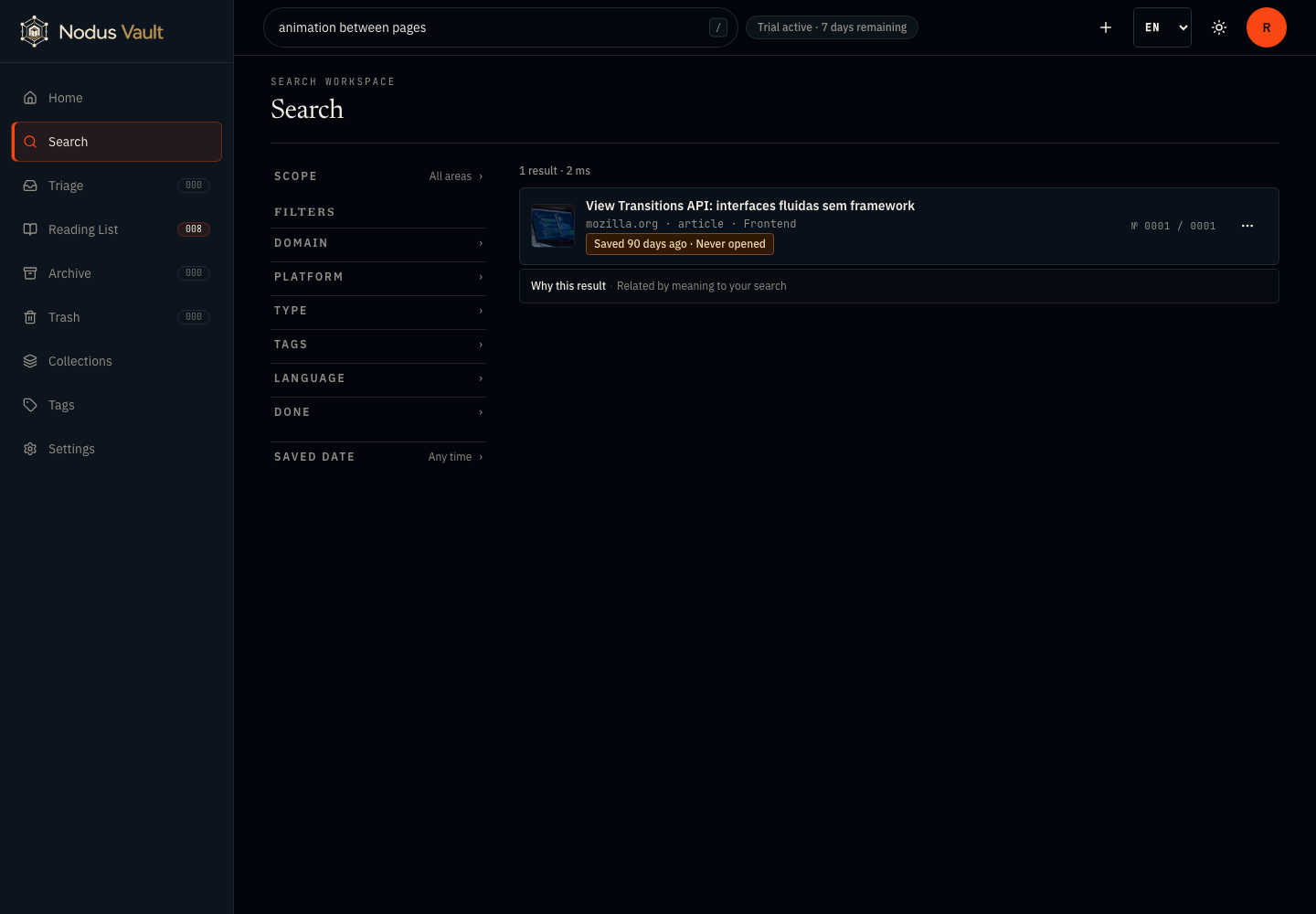
Open the full-size screenshot. The current English interface shows a differently worded candidate and identifies meaning as the reason it appeared.
If nothing appears, diagnose the miss
Before deciding the link is gone, check these possibilities:
- It was visited but never saved. Search browser history and then the open web.
- It is in another profile or account. Work and personal browser profiles are easy to confuse.
- Your memory merged two pages. Remove one uncertain clue and search again.
- The page was saved with little content. Search by domain, URL fragment, or approximate date.
- A filter is hiding it. Clear collection, area, tag, type, and date filters.
- It was archived or deleted. Include archived items and check the trash if the tool provides it.
Changing one condition at a time is important. If you replace the query, source, date, and content type together, you will not know which assumption was wrong.
Make the next search easier with one sentence
You do not need to classify every link. When a page matters, add one sentence in your own language:
Use this when we revisit animation between routes.
That sentence records why you saved the page, which is often closer to how you will remember it later than the original title. Add a project tag only when it represents a real ongoing project. Organization should create a useful return path, not another inbox to maintain.
A quick checklist
When a saved link seems lost:
- Write one sentence about what you remember.
- Extract the strongest clue: rare word, source, person, format, or date.
- Search the browser’s bookmarks and history.
- Search descriptions, saved page text, notes, and tags if available.
- Use meaning-based search for vocabulary gaps.
- Verify the result with source, excerpt, date, and the page itself.
The goal is not to remember the title. It is to give the search system enough honest clues to reconstruct a path back.
Nodus Vault searches saved links across text, context, and meaning, then shows the evidence behind each result. Try it with an idea you remember instead of a title you do not.