

Privacy and security
Are Bookmark Manager Extensions Safe? A Practical Privacy Audit
Audit a bookmark extension by following its permissions, access trigger, data destination, retention, export, and deletion—not its store rating alone.
Some bookmark manager extensions are reasonably scoped; others ask for far more access than their job requires. A Chrome Web Store listing, a high rating, or one reassuring sentence does not answer the question by itself.
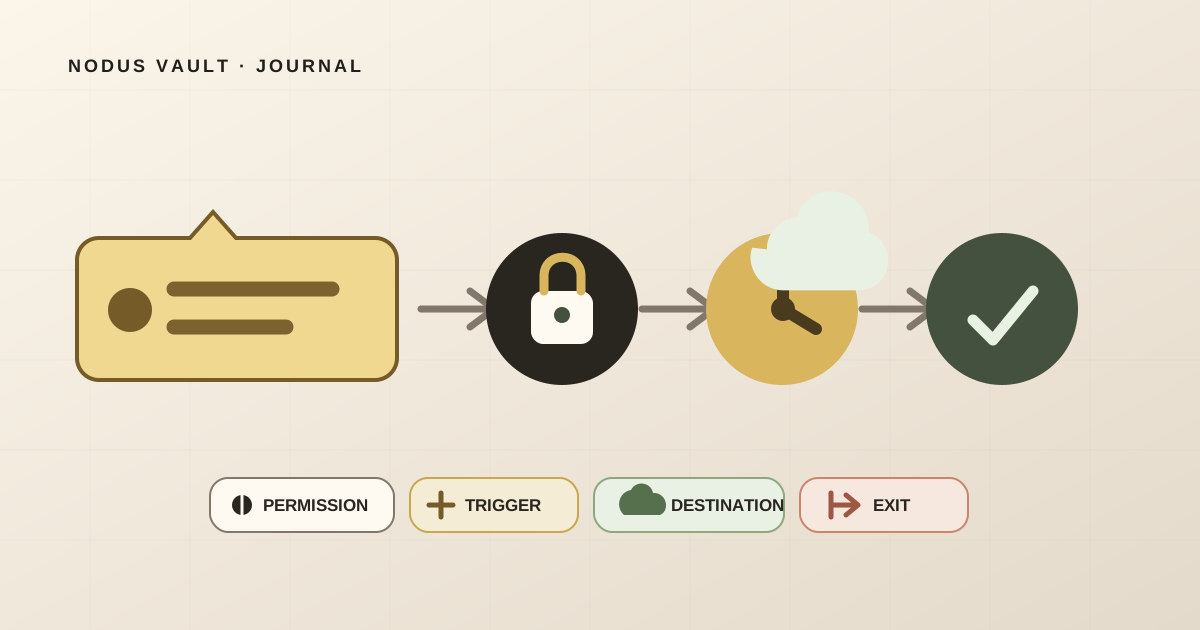
For a useful privacy audit, follow four layers: what the extension can access, what triggers that access, where the data goes, and how you can get it out or delete it. A permission is a capability, not proof of collection. A privacy policy is a declaration, not proof of runtime behavior. You need both, plus a small test.
A bookmark can reveal more than a destination
A saved record may contain only a URL and title. A richer bookmark manager may also keep:
- folder names, tags, and notes;
- highlighted text and page descriptions;
- thumbnails and readable article text;
- the account that owns the library;
- when an item was saved, opened, archived, or shared.
Even a plain URL can disclose an internal company hostname, a medical search, a private document identifier, or a query parameter that should not have been shared. Never save password-reset links, magic sign-in links, or addresses containing credentials simply because the manager has a good privacy statement.
The right question is not “does this extension have access?” Every useful extension needs some access. Ask whether the access is proportionate to the task and whether the resulting data path matches what you expected.
Start with the job the extension performs
“Bookmark manager” covers several different products:
| Job | Access that may be reasonable | Question to ask |
|---|---|---|
| Organize Chrome's native bookmarks | The bookmarks API | Does it need to read and modify the whole tree? |
| Save only the current page to another service | Temporary current-tab access and a connection to that service | Does access begin only after my action? |
| Clip readable page content | Access to the chosen page's document | Which text, images, and metadata are stored? |
| Synchronize libraries | Native bookmark access, local state, and a remote destination | What happens during conflicts, deletion, and sign-out? |
Chrome's official bookmarks API documentation says the permission can retrieve the full bookmark hierarchy and create, update, move, or remove nodes. That is appropriate for an extension whose advertised job is reorganizing native bookmarks. It would be harder to justify for a one-button tool that merely sends the open page to its own account.
This distinction keeps the audit fair. A powerful permission is not automatically malicious. An unrelated permission is the stronger warning.
Layer 1: translate permissions into data
Open the extension's Chrome Web Store page, then open chrome://extensions, select Details, and review its permissions and site access. Chrome's current extension management instructions explain how to change site access to the current site, selected sites, or all sites when the extension supports those controls.
These entries matter most for bookmark tools:
| Permission or manifest field | Capability to investigate |
|---|---|
bookmarks | Read and modify the native bookmark tree, including titles, URLs, folders, and ordering |
activeTab | Temporary access to the active page after a user gesture |
scripting | Run packaged code in a page when paired with temporary or declared host access |
content_scripts | Run code automatically on matching sites defined by the extension |
host_permissions | Interact with specified sites or remote service origins |
history | Use Chrome's browsing-history API |
tabs | Access sensitive tab properties more broadly than ordinary tab operations |
storage | Persist extension state in Chrome's extension storage |
identity | Run an authentication flow; the account data available still depends on the flow and scopes |
Two details are easy to miss.
First, activeTab does not display an installation warning. Google describes it as temporary access granted after actions such as clicking the extension, using its context menu, or invoking its shortcut. While active, it can expose the current tab's URL and title and, with scripting, allow code to run in that page. The official activeTab explanation treats it as a narrower alternative to permanent access across every site. “No warning” therefore does not mean “cannot read the page.” It means access is temporary and action-bound.
Second, permissions work in combinations. scripting alone is not all-site access. A host pattern such as <all_urls>, broad content_scripts.matches, or a user-granted current-site scope determines where code can run. Chrome's permission declaration guide explains these separate manifest fields and recommends the narrowest permissions that support the current feature.
Layer 2: find the trigger
Now determine when access starts:
- only after you select Save this page;
- whenever you open the extension popup;
- automatically on a defined group of sites;
- automatically on every site;
- on a timer or browser-start event;
- when a bookmark is added or changed.
For a current-page saver, a user action followed by temporary activeTab access is a narrower design than a content script registered for every page. For a native bookmark synchronizer, listening for bookmark changes may be central to the feature. The trigger must be judged against the promised job.
Look at updates too. Chrome says adding a permission that triggers a warning may disable an extension until the user accepts the new access. Not every capability creates an obvious warning, however, so revisit the Details page after a major version change. The official permission-warning guidance recommends relevant, minimum, and when possible optional permissions.
Layer 3: follow the destination
Once the extension has a URL, title, or page text, where does it put that information?
There are three broad possibilities:
- Local only. The record remains in browser or device storage.
- Cloud account. The record is transmitted to the developer's service for sync, search, backup, or collaboration.
- Additional processors. Selected content may reach analytics, AI, search, enrichment, hosting, or other infrastructure providers.
“Local” still needs a retention check. Chrome's storage API documentation says extension storage can persist even when the user clears browser cache and history. “Cloud” is not automatically unsafe either, but it needs clear answers about encryption in transit, account security, service providers, retention, and deletion.
Host permissions help identify destinations an extension can contact from privileged extension contexts. Chrome documents that remote requests require matching hosts in the manifest. A narrow service origin is easier to explain than access to every HTTPS host, but it does not reveal the complete backend processing chain. Read the privacy policy and the standardized data disclosures in the store.
Chrome Web Store policy requires products handling user data to publish a privacy policy, use secure transmission, request minimum permissions, and restrict browsing-data use to disclosed user-facing purposes. Those are meaningful rules. They are not a personal guarantee that a particular extension has no bugs or has never been compromised. Chromium's own extension security FAQ tells users to examine both requested permissions and privacy disclosures.
Layer 4: test the exit
Uninstalling an extension removes the browser component. It does not necessarily delete an account or cloud library.
Before importing sensitive material, find:
- export controls and the actual export format;
- deletion for one saved item;
- permanent account deletion;
- retention language for logs, backups, and generated exports;
- what remains locally after disconnecting;
- how support can access user data;
- whether the policy names material third-party processing.
Run an exit test with public data. Export a small trial library, open the result without the product, delete one item, then use the account-deletion path only if you are genuinely ready to close that test account. Do not assume that “export available” means notes, highlights, folder structure, and page text all survive.
The broader retrieval-first bookmark manager checklist tests capture, search, resurfacing, and portability. This audit goes deeper on the privacy boundary.
A 10-minute audit with non-sensitive links
Use a separate browser profile if the decision matters and the extension requests native bookmarks or broad site access.
- Read the listing before installation. Record the publisher, current version, last update, purpose, privacy link, and disclosed data categories.
- Write down the expected job. One sentence is enough: “Save only the page I select to my account.”
- Inspect Details. Compare permissions and site access with that sentence.
- Save three public pages. Include one URL with a harmless unique parameter such as
?audit=2026-07-30so you can recognize it later. - Observe the trigger. Check whether anything happens before you click, use a context menu, or press the documented shortcut.
- Check local and account state. Go offline, attempt a save, reconnect, and see whether the product explains a local queue or retry.
- Export the trial. Confirm which fields leave and whether the file opens independently.
- Delete deliberately. Remove one item and verify the visible result. Read the account-deletion and retention language instead of guessing.
- Recheck after an update. A clean audit describes one version, not every future version.
Download the bookmark extension privacy audit sheet to record the evidence and decision for each layer.
We audited the current Nodus extension against this framework
Nodus Vault publishes this article and the extension being examined. This is an internal, code-backed disclosure—not an independent penetration test, certification, or guarantee that the service cannot be compromised.
On July 30, 2026, we rebuilt version 0.1.1 with the documented production configuration, inspected the generated Manifest V3 file, ran the existing Chrome Web Store package validator, and added a regression test for the claims below.
The production manifest declares:
activeTab,scripting,storage,contextMenus,identity,notifications, andalarms;- one production host scope:
https://nodusvault.com/*; - no
bookmarks,history,tabs,cookies,webRequest,management, or<all_urls>; - no automatically registered
content_scripts.
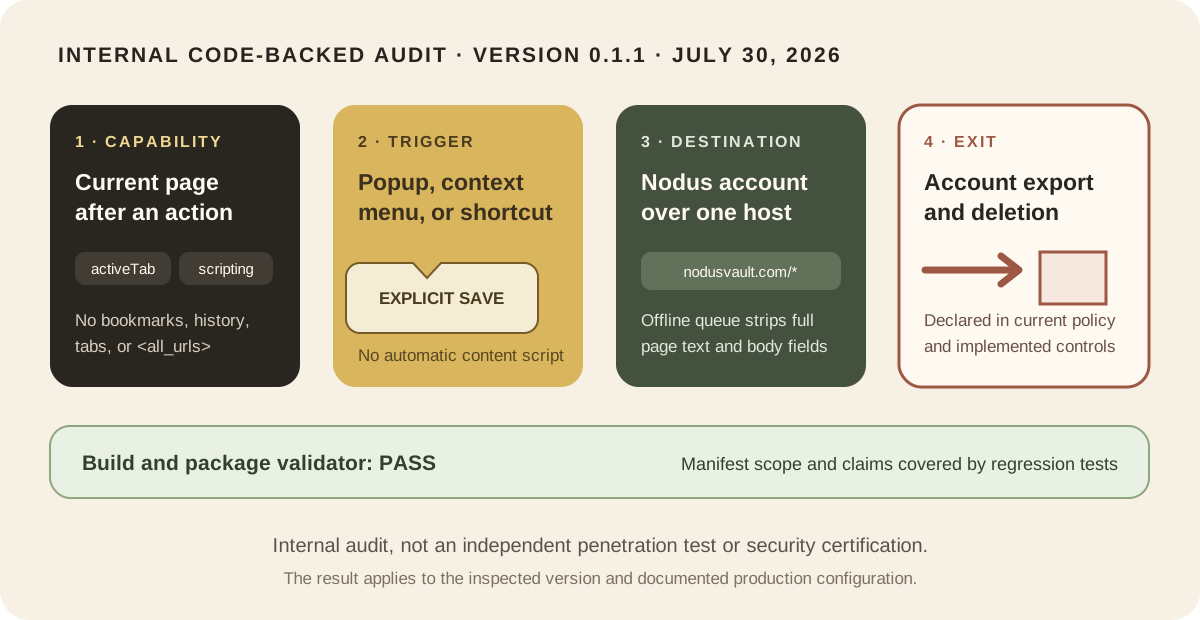
The absence of bookmarks means the extension cannot use Chrome's bookmark API to read or reorganize the native tree. It does not mean no bookmark data leaves the browser. After a user invokes Save, the current code programmatically runs its packaged extractor in that tab, gathers the URL, title, available metadata and, when extraction succeeds, readable page text, then sends the selected record to the user's Nodus account.
If the service is temporarily unavailable, the code creates a local retry entry. Tests confirm that the queue removes full page_text, descriptions, and body-bearing platform fields before storage; it still retains information needed to retry, including the URL, title, author, image URL, type, selected tags, and identifiers. Authentication revocation and disconnect tests confirm that account-derived local queue and tag data are cleared.
The production validator reported no findings for development origins, remote-code patterns, missing packaged files, or broad <all_urls> access. The new article regression test confirms the manifest version, explicit permission list, service host, absent broad permissions, and lack of automatic content-script registration.
The Nodus Vault privacy policy supplies the declared server-side half of the audit: saved fields, optional readable text, local extension data, service providers, AI/search processing, retention, account export, and deletion. We verified that this disclosure exists in the current product source. We did not independently inspect hosting-provider systems, network traffic from a production user account, backup rotation, or every backend request.
The result is a narrower exposure than a native-tree manager with bookmarks or an extension running automatically on every site. It is still a cloud service receiving the pages a user chooses to save. Whether that trade-off is acceptable depends on the links involved and the reader's threat model.
When the answer should be “do not install it”
Stop when:
- the requested access does not match the advertised purpose;
- the privacy link is missing, generic, or contradicts the listing;
- an extension claims “local only” but requires unexplained service hosts;
- export and deletion cannot be found before a large import;
- a new version asks for materially broader access without an explanation;
- your employer or client forbids third-party storage of the URLs involved;
- your library includes secrets, private environments, or regulated material the service is not approved to process.
Sometimes Chrome's native bookmarks in a separate profile are enough. Sometimes a local-only extension is the right fit. Cloud search and cross-device access can justify transmission for less sensitive libraries, provided the path is explicit and the exit works.
No checklist can prove that software is perfectly safe. It can expose a mismatch before you hand over years of links. Audit the capability, trigger, destination, and exit with a small public set; only then decide whether the extension has earned a larger library.