

Guides
How to Find a Website You Visited but Don’t Remember the Name
Recover a half-remembered website with a privacy-aware search through bookmarks, browser history, account activity, and the open web.
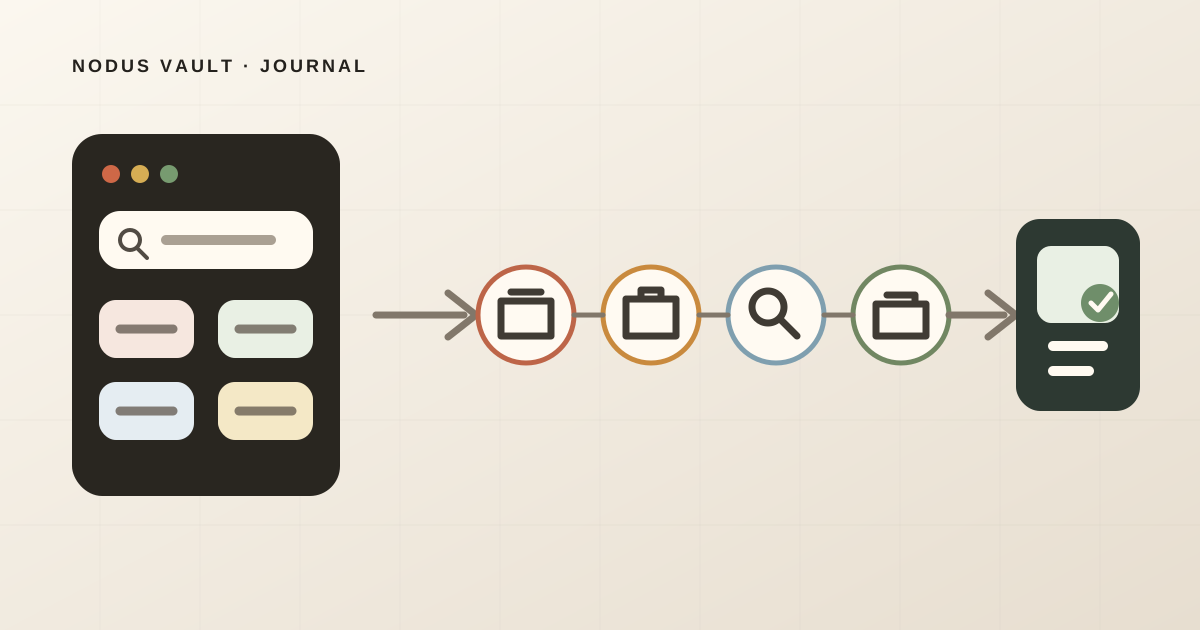
If you remember a website but not its name, first decide whether you probably saved it or only visited it. Search the smallest, most private collection that could contain it: bookmarks or your saved-link app first, local browser history second, account activity only if you already use it, and the open web last.
Before searching, write down the clues you still have. The page's idea, approximate date, source type, visual detail, person, product, or task can be more useful than a guessed title.
This guide is for ordinary recovery of your own browsing. It will not recover Incognito visits, deleted records, history that was disabled, or a page that disappeared from the web. It also does not cover forensic recovery, monitoring another person's activity, or bypassing workplace controls.
Start by separating “saved” from “visited”
These are different search problems.
- Probably saved: search browser bookmarks, your read-later list, notes, or a bookmark manager. If you know the link was saved but cannot remember its title, use the more focused guide to finding a saved link from partial memory.
- Probably only visited: search the history in the browser and profile you used.
- Not sure: search saved collections first. They are usually smaller, deliberately chosen, and less revealing than a full browsing history.
Do not install a new extension or upload your history file just to begin. The browser already has a local path, and it is often enough.
Build a recovery card from what you remember
Take one minute and fill only the fields that feel real:
| Clue | Example |
|---|---|
| Idea or problem | A university page about writing research notes in your own words |
| Approximate time | Yesterday afternoon, while drafting this article |
| Source or domain | A Canadian university; perhaps Toronto |
| Page type | Writing advice, not a journal paper |
| Distinctive detail | It warned against depending only on highlighting |
| Context | Opened after looking for ways to keep track of read articles |
Treat uncertain memories as optional. If “Toronto” is only a guess, do not make it a required filter. People often merge details from two pages or remember the search result that led to the page rather than the page itself.
Choose the rarest reliable clue first. research reading is stronger than article about notes; a likely domain is stronger than a color you vaguely remember.
1. Search bookmarks and saved links
Use one unusual word, a domain, or the idea in your own language. Clear old filters and include archived material if the tool has an archive.
If the result is not there, that does not prove the page was never saved. Check whether you used another browser profile, device, account, or app. But do not spend twenty minutes searching a saved collection when your memory says you merely opened the page once. Move to history.
2. Search regular Chrome history by keyword, date, and group
On desktop Chrome, open History or enter @history in the address bar, press Tab or Space, and type keywords for the page. The current Chrome history instructions also describe reviewing history by date and group.
Try queries in this order:
- one distinctive title or topic word:
research reading; - a likely domain fragment:
utoronto; - a person, product, or technical term;
- a broader word combined with the date or group where you remember the session.
Chrome says its History page lists visits from the last 90 days. It excludes internal Chrome pages, Incognito visits, and entries already deleted from browsing history. When Chrome history sync is enabled, visits from other signed-in devices may also appear. Those are coverage rules, not guarantees that a vague query will match page-body text.
If the visit should be present but is not, check the active Chrome profile and whether a work or school administrator disabled history. Avoid clearing or changing history settings while you are still trying to recover the page.
3. Search Firefox’s History Library
In Firefox, open History and choose Manage History to reach the Library. The current Firefox history guide documents the Search History field and sorting by fields such as name or URL.
Use the same clue sequence: rare topic word, domain, person or product, then approximate period. If you use more than one Firefox profile or computer, make sure you are searching where the visit actually occurred.
Private Browsing and cleared history create the same basic limit as Incognito in Chrome: there may be no ordinary history record to search. This guide does not attempt to reconstruct it from caches, network logs, or device files.
4. Use natural-language history search only if you want its trade-offs
Chrome currently documents two optional natural-language paths. They are not universal replacements for regular history.
History search, powered by AI can match everyday descriptions rather than exact names. According to the current Google documentation, it requires Chrome in English and a user located in the United States. After you opt in, Chrome stores the contents of subsequently visited pages locally and encrypted on the device for this feature. Earlier visits are not retroactively added to its AI matches, managed profiles may disable it, and Google recommends queries of two or more words.
Gemini in Chrome history search also accepts everyday language, but its current requirements include opting in to Gemini in Chrome, using the latest Chrome, signing in with a personal Google Account, and syncing Chrome history. It is not available in Incognito or with a work or school account.
These options can help when you remember the meaning but not title words. They also involve feature availability, account or sync choices, and—depending on the path—local storage of page content. If you do not want those conditions, skip them. Regular history, My Activity, and open-web search remain available paths.
5. Check Google My Activity only when your settings make it relevant
Google My Activity can filter saved account activity by keyword, date, and product. It may help if you were signed in and the relevant activity setting was enabled when you found or opened the page.
It is not a universal copy of browser history. What appears depends on your Google Account settings, products, sign-in state, and deletions. Google also notes that some activity lives elsewhere. Treat My Activity as another collection to search, not as proof that an absent page was never visited.
Use the same recovery card:
- filter to the approximate date;
- select the likely product if known;
- search the rare term or domain;
- open a candidate and verify the page itself before saving it again.
6. Reconstruct the discovery path on the open web
When no history collection contains the page, search the web from the memory that remains.
Build the query gradually:
- concept:
taking notes research reading own words; - likely source:
site:utoronto.ca taking notes research reading; - distinctive claim in quotation marks only when you are confident about the wording;
- person, tool, document type, or approximate year if results are still broad.
Also repeat the question that led you to the page. You may not remember the website, but you may remember asking “how should I take notes on articles after reading?” Search engines can reproduce part of the discovery path even when browser history cannot.
Beware of lookalikes. A search result with the right topic is not necessarily the page you visited. Verify the domain, author, examples, layout, and surrounding text. Your memory may also have combined one page's design with another page's argument.
We checked the current recovery surfaces against one real page
For an observable example, we used the University of Toronto page Taking Notes from Research Reading, which we opened while researching the companion article on keeping track of completed reading.
On August 18, 2026, we compared the clues left by that page with the inputs the official browser and account documentation says each recovery surface accepts.
| Remembered clue | Suitable surface | Why |
|---|---|---|
research reading | Regular Chrome or Firefox history | Both words occur in the page title; normal keyword history has a concrete label to match |
utoronto and “yesterday” | Chrome history by keyword and date, Firefox Library, or My Activity when enabled | Domain and time narrow the session without requiring page-body search |
| “write notes in your own words, not only highlights” | Optional AI history or open-web search | This describes the body idea, not the exact title; regular history may miss it |
| “found while researching article organization” | History group or reconstructed web query | This is discovery context, useful only where related sessions or a similar search can be reviewed |
This is a documentation-backed recovery rehearsal, not a browser benchmark. We did not log into a private account or claim that every surface returned the page. The exercise shows which clue has a documented path and where a miss remains possible.
The strongest low-tech clue was the title fragment research reading. The most human clue—writing in your own words—needed a search surface that understands page content or a reconstruction on the open web. That gap is why it helps to save important pages deliberately with your own memory line.
Know when recovery is no longer possible
Stop repeating the same query when one of these conditions is likely:
- the visit happened outside the history window;
- you used Incognito or Private Browsing;
- history was disabled, cleared, or deleted;
- the page lived in another profile, account, device, or browser you cannot access;
- the site moved, removed, or restricted the page;
- your memory merged multiple sources;
- the page was generated inside an authenticated app and is not publicly searchable.
You can still search the open web, check an authorized project record, or ask a colleague who shared the source. Do not install opaque “history recovery” software or upload sensitive browser data without understanding exactly what it reads, stores, and sends.
After you find the page, create a better path back
Do not celebrate by leaving the recovered page in an open tab. Save it only if it still has a purpose, and add one sentence in the words you are likely to remember:
Use this when explaining why a reading note needs my own interpretation, not only a highlight.
Then test the save with a phrase from that sentence. If you can retrieve the source and the result shows why it matched, the next recovery will not depend on browser history.
Nodus Vault fits after this recovery. Its Chromium extension processes a page when you explicitly choose to save it; current extension documentation and privacy code state that it does not collect full browsing history or monitor unsaved pages. For saved links, Nodus can index available page text and your notes, combine lexical and meaning-based retrieval, and show matching evidence. If a page was never saved, Nodus cannot recover the earlier visit.
Those product boundaries were checked against the current extension disclosure, privacy copy, search document, ranking and explanation tests on August 18, 2026. Some pages do not yield readable text, and semantic search can fall back to lexical search.
Try Nodus Vault with the page you just recovered: save it deliberately, write the clue you actually remembered, close it, and search for it tomorrow without using the title.