

Guides
Microsoft Edge Collections Is Gone: How to Save Your Links
A migration guide based on Microsoft's current documentation, with checks for preserving Edge Collections links, notes, and images.
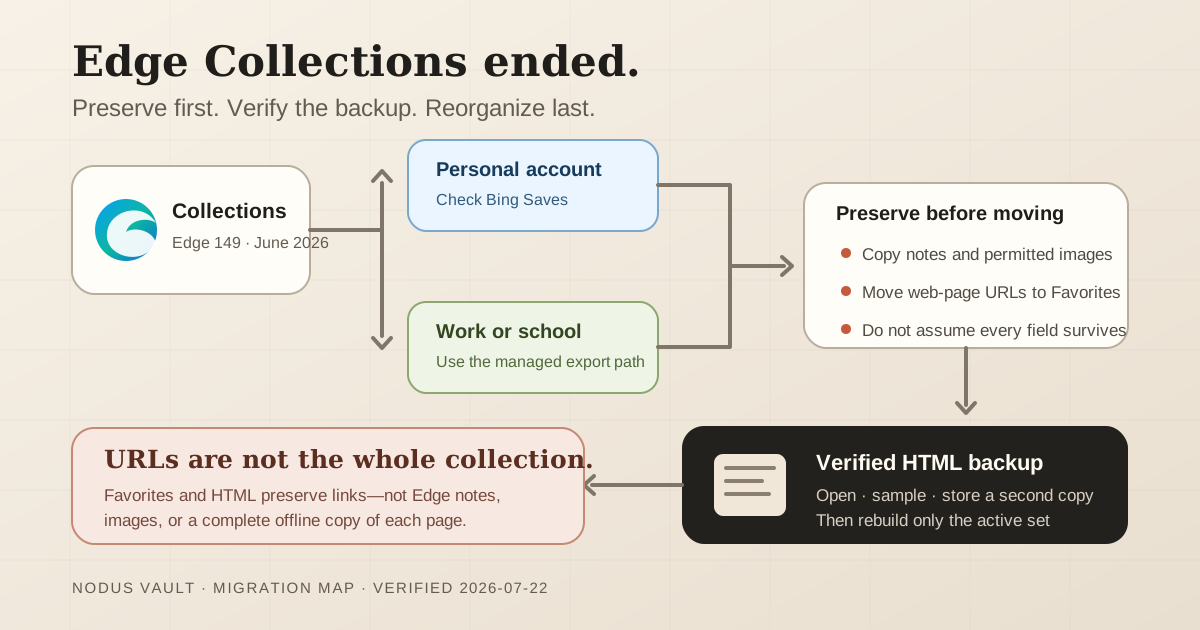
If Microsoft Edge Collections disappeared after an update, start with preservation, not replacement. Sign in to the same Microsoft account at Bing Saves, identify whether you used a personal or work account, and copy any notes or images you cannot afford to lose before moving the links.
Microsoft says Collections is no longer available starting with Edge 149, released on June 4, 2026. Its two exit paths are not equivalent: Move to Favorites keeps saved web-page URLs, but not images, notes, or other non-page items. Exporting Collections data is documented for work and school accounts, while personal accounts are directed to Bing Saves. Microsoft's current Collections support page explains these account-specific paths.
Before you change anything: This guide is our interpretation of Microsoft's official documentation as checked on July 22, 2026. It does not replace Microsoft Support or your organization's instructions. Confirm the current Collections documentation for your Edge version and account type before moving or deleting data. If what you see differs from this guide, follow the current official guidance and preserve the original copy until the discrepancy is resolved.
That distinction should decide what you do next.
First, find out which copy still exists
Do not uninstall Edge, clear the profile, delete a collection, or start a large reorganization yet. Establish where the surviving copy is.
- Open
edge://settings/helpand record the Edge version. - Confirm whether Collections used a personal Microsoft account or a work or school account.
- With the same personal account, check Bing Saves.
- If a Collections retirement notice is still visible in Edge, read the options before selecting either one.
- Take a screenshot or write down the collection names and count a few representative items.
Edge 145 began the phased retirement; version 149 removed the feature from the current browser experience. Microsoft's Stable Channel release notes confirm that Edge 149 shipped on June 4. A machine on a newer build may therefore look different from an older help article.
If neither Edge nor Bing Saves shows the expected content, stop before changing the profile. For a managed account, contact the organization that controls it. Community workarounds that downgrade Edge, edit local databases, or launch the browser with unofficial flags can create a second problem without producing a verified backup.
Preserve notes and images before moving the URLs
Collections could contain more than links. A collection used for a trip, purchase, class, or research project may also hold pasted text, notes, and images. The official migration to Favorites does not carry those items.
Use a small audit before moving anything:
| Item in a collection | What Move to Favorites keeps | What to do before moving |
|---|---|---|
| Saved web page | URL, organized in a Favorites folder | Verify the URL opens and record any context stored separately |
| Personal note | Not included | Copy it to a document or notes app with the collection name and related URL |
| Saved image | Not included | Download it only if you have the right to keep it; record its source |
| Text excerpt | Not documented as a moved item | Preserve the excerpt with its source URL and purpose |
| Collection name | Used to organize the resulting Favorites folders | Record the names so you can check the migration |
For a work or school account, Microsoft documents an Export Your Data option. Treat that file as a backup to inspect, not as proof that every item survived: open it, check several collections, and compare the fields with what you recorded. The official page does not promise that every downstream tool can import that export.
For a personal account, Microsoft sends existing content to Bing Saves instead of offering the enterprise export path. If important notes or images are visible there, preserve them before relying on a URL-only move.
Move pages to Favorites, then make an HTML backup
If Edge still offers Move to Favorites, Microsoft says each collection becomes a folder at the root of Favorites. Only saved pages move. Once the folders appear, make a portable copy:
- In Edge, open Settings and more → Favorites.
- Open the Favorites More options menu.
- Select Export favorites.
- Save the resulting HTML file with a date, such as
edge-favorites-2026-07-22.html. - Open the HTML file in a browser and test at least one URL from every important collection.
Microsoft's own Favorites backup instructions document this HTML export. Keep the file somewhere outside the Edge profile. An export that exists only on the same computer is better than nothing, but it is not a resilient backup.
If you cannot see Move to Favorites, do not assume a third-party extension can recover everything. First use the path Microsoft provides for your account: Bing Saves for a personal account, or the organization's export and support process for a managed account. Manually copying the few critical URLs is slow, but safer than giving an unknown extension access to an account before you have a verified copy.
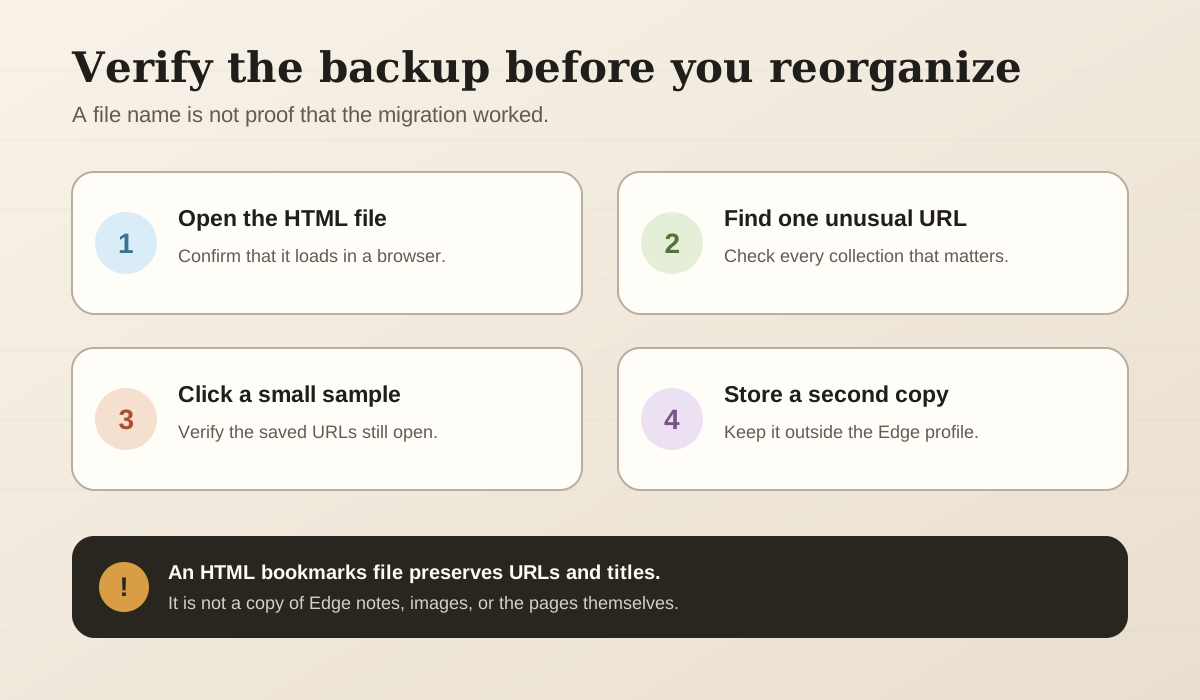
Use this sequence while the original copy is still reachable. The diagram condenses the verification below; it does not prove that notes, images, or every URL survived.
Check the backup before choosing a replacement
A successful export is not just a file with a plausible name. Check it while the original content is still reachable.
Use this five-minute verification:
- confirm that the HTML file opens locally;
- search for one unusual URL from each important collection;
- check that collection folders are recognizable;
- click a small sample of links;
- confirm that copied notes still name their source;
- store a second copy in a different location.
Broken pages are a separate issue. An HTML bookmarks file normally preserves URLs and titles, not a complete offline copy of each page. If a source itself has disappeared, the export cannot reconstruct its content.
Only after this check should you decide where the links belong next.
Rebuild by use, not by copying every old folder
The easiest migration is to reproduce every collection exactly. It is also a convenient way to carry old confusion into a new tool.
Start with one question for each collection: what did these links help me do?
- Put pages you open repeatedly into browser Favorites or a reference area.
- Put unfinished articles into a reading list only when you still intend to read them.
- Keep project sources together while the project is active.
- Archive completed research when its source trail still matters.
- Leave obsolete or unexplained links in the backup until you have a reason to recover them.
The separate guide to bookmarks versus reading lists provides a fuller decision tree. The important point during this migration is that you do not need to review every old URL before the backup becomes safe.
Choose ten active links, not ten years of history. Rebuild the working set first and keep the HTML file as the fallback for everything else.
Import the HTML file into Nodus Vault, if that fits the job
Nodus Vault accepts a browser bookmarks HTML file or pasted URLs. It previews the total candidates, valid unique URLs, duplicates, and invalid entries before adding the valid links to Triage.
The boundary matters: the importer reads links and their titles. It does not restore Edge Collections notes, images, or arbitrary fields from a Collections export. Preserve those separately.
To use the HTML path:
- Open Settings → Data transfer → Import in Nodus Vault.
- Select the HTML file exported from Edge Favorites.
- Review the preview counts and sample URLs.
- Import the links into Triage.
- Process a small active set into reading, reference, a collection, or archive.
This workflow was checked against the current Nodus Vault importer and its HTML import tests on July 22, 2026. It is a prepared product verification, not a claim that Nodus can recover data Microsoft no longer exposes.
If the migrated reading list is already overwhelming, use the method for saved articles you never read instead of turning the whole import into urgent work.
Keep the exit route this time
The useful lesson from the retirement is not that browser features are inherently unsafe. It is that a saved-link system needs an exit you have actually checked.
Keep the original Edge export, make periodic backups of the new destination, and preserve notes with their source URLs. You can try the import and Triage flow in Nodus Vault, but the same rule applies to any replacement: do not delete the old copy until you can open, search, and export the new one.
Verification note: retirement status and account paths were checked against Microsoft Support and Edge release notes on July 22, 2026. The Edge application was not available in our verification environment, so button labels and availability were not independently reproduced across every account type. The Nodus Vault HTML import path was verified in the current code and automated tests. This article should be reviewed when Microsoft changes Bing Saves or its migration documentation.