

Bookmark maintenance
How to Remove Duplicate Chrome Bookmarks Without Losing the Originals
Stop recurring Chrome bookmark duplicates, back up the originals, remove exact copies safely, and verify a clean HTML file before changing sync.
To remove duplicate Chrome bookmarks without losing the originals, work from an HTML export rather than deleting the live library first. Keep that export unchanged, identify what is creating new copies, remove only exact duplicate URLs from a copy, and test the cleaned file in a separate Chrome profile before replacing anything.
The order matters. If a phone, another computer, iCloud Bookmarks, or a second import is still feeding an older set into Chrome, deleting the visible duplicates treats the symptom. They can come back.
First decide what “duplicate” means
Three situations can look the same in Bookmark Manager but require different decisions:
| What you see | What it may mean | Safe default |
|---|---|---|
| The exact same URL appears more than once | A true exact duplicate, even if the titles differ | Keep the first useful placement; review the rest |
Similar URLs differ by utm_source, a fragment such as #examples, or another parameter | A possible duplicate | Compare the destination and folder before deleting |
| Two top-level folders have the same name | Separate local and Google Account bookmark trees may be involved | Do not delete a whole tree based on its name |
Google changed Chrome's desktop identity model so that bookmarks stored only on a device can remain local after sign-in. Some people can have syncing and non-syncing bookmark subtrees at the same time. Chrome's developer documentation says extensions may therefore encounter two versions of folders such as Bookmarks bar and Other bookmarks. The Chrome bookmark storage change is a useful warning: duplicate-looking folder names, particularly in an extension, do not prove that every link inside is duplicated.
An exact URL is narrower. https://example.com/report?view=weekly saved twice is an exact duplicate. These two are not:
https://example.com/report?view=weeklyhttps://example.com/report?view=monthly
The query value identifies different content. Deleting by title, domain, or visual similarity would be unsafe.
Find the source before cleaning
Take five minutes to map every system that can write bookmarks:
- Chrome profiles on this computer;
- other computers, phones, or tablets signed in to the same Google Account;
- iCloud for Windows and its browser extension;
- bookmark-management or speed-dial extensions;
- recent HTML imports;
- another browser that shares bookmarks through an external service.
Google's current account documentation explains that bookmarks can be saved in your Google Account and become available on devices signed in with that account. When signed out, existing information can remain only on the device. Check Settings → You and Google and note which account and bookmark-saving options are active on each device; the official Chrome account guide describes the current model.
If you use iCloud for Windows, check it separately. Apple's setup instructions explicitly tell users to install an extension for each browser and select Merge to share current PC bookmarks with iCloud. That is a legitimate synchronization path, but it becomes a second writer alongside Chrome's own account storage. See Set up iCloud Bookmarks on Windows.
Extensions deserve the same check. Chrome requires an extension to declare the bookmarks permission before it can create, organize, or otherwise manipulate the bookmark tree. Open chrome://extensions, review anything related to bookmarks, sync, new tabs, or speed dial, and inspect its permissions. The official bookmarks API reference documents that access.
Do not clear Google Account data or uninstall everything as a first experiment. A January 2026 Chrome Help Community report shows the recurring pattern—duplicates returned after deletion and reorganization—but community diagnoses are not verified support policy. Start with an inventory and a backup. Escalate account resets only through current official support for your exact state.
Export an unchanged backup from the correct profile
On a desktop computer:
- Open the Chrome profile with the library you want to clean.
- Open More → Bookmarks and lists → Bookmark Manager.
- In Bookmark Manager, open More.
- Select Export bookmarks.
- Save the HTML with the profile and date in its name, such as
chrome-personal-before-dedup-2026-07-30.html.
Those steps follow Google's current Chrome import and export guide, checked on July 30, 2026.
Verify the backup before cleaning:
- Confirm that the file exists and is not empty.
- Open it in a browser.
- Find a recognizable bookmark from the bar, a nested folder, and near the end of the library.
- Copy the file to storage outside the Chrome profile folder.
- Do not overwrite it with the cleaned version.
The HTML contains titles, URLs, and folder names that may reveal clients, health research, internal systems, or personal interests. Store it accordingly.
Analyze the copy without modifying Chrome
Open the free Bookmark Health Check and choose the exported HTML. The analysis runs in your browser, the file is not uploaded to Nodus Vault, and the tool does not modify the file or the live Chrome library.
The report separates:
- exact duplicates: bookmarks with identical submitted URLs;
- possible duplicates: URLs that match after removing fragments and known campaign parameters and sorting query parameters;
- campaign parameters: known identifiers such as
utm_source,fbclid, andgclid; - empty folders: folders with no bookmark beneath them.
Meaningful query values remain part of the comparison. Product IDs, searches, and report views are not discarded just to make two addresses look alike.
Review the folder path before removing an exact duplicate. The same URL may be an intentional shortcut in both Current project and Reference. Technically it is repeated; contextually, both placements may be useful. If the folder matters, keep both or decide manually which one survives.
Remove exact copies from a new file
For a large set, open Bookmark Cleaner and load the same original HTML export.
- Turn on Remove exact duplicates.
- Leave Remove campaign codes off for the first pass unless you have reviewed that separate change.
- Treat Remove empty folders as another optional decision.
- Review the change summary and sample the affected folder paths.
- Download a new HTML file under a different name, such as
chrome-personal-cleaned-2026-07-30.html.
The duplicate rule is deliberately conservative: the cleaner keeps the first occurrence of each URL in document order and removes only later identical copies from the original file. Removing campaign codes happens afterward, so a possible duplicate that becomes identical only after that cleanup is not silently deleted.
This detail creates one important failure case. If the same exact URL is intentionally saved in two folders, the later placement will be removed. Either keep exact-deduplication off and delete manually from the report, or arrange the preferred placement before generating the clean file.
This file-based workflow also avoids granting an extension direct access to the live bookmark tree. It does not make the result automatically appear in Chrome; you choose if and where to import it.
We tested the boundary with 14 controlled bookmarks
On July 30, 2026, we passed a controlled Chrome-style HTML file through the current Nodus analyzer and cleaner. The file contains:
- 14 bookmarks in two populated folders;
- two exact-duplicate groups with three removable extra copies;
- three possible-duplicate groups created by campaign parameters or fragments;
- two URLs with campaign codes;
- one empty folder;
- meaningful query pairs such as
view=weeklyversusview=monthlyandid=42versusid=43.
The analyzer reported 14 bookmarks, three exact extras, three possible-duplicate extras, two campaign URLs, and one empty folder. We then enabled all three cleanup options. The result contained 11 bookmarks: three exact copies removed, two campaign URLs simplified, and one empty folder removed.
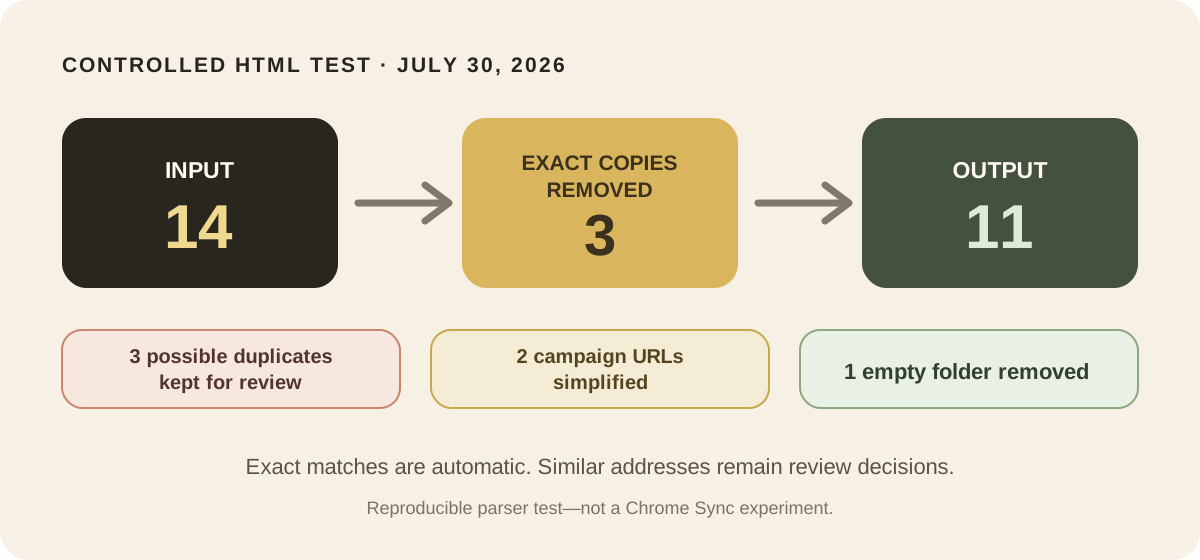
One campaign pair became textually identical only after its campaign code was removed. Both bookmarks remained, as intended. Two fragment-based pairs also remained for review. The regression test verifies these counts and confirms that the first exact occurrence stays in its original folder.
This is a parser and cleanup test, not a Chrome Sync experiment or a user study. We did not modify a real Chrome profile, test every export variation, visit the sample example.com URLs, or prove what caused duplicates in any user's account. The result supports a narrower claim: under the documented rules, the current cleaner removes only the original exact copies in this reproducible file and leaves ambiguous cases for review.
Test the cleaned file before replacing the live library
Create a temporary Chrome profile and continue without signing in. Google's profile guide explains how profiles keep bookmarks and other browser information separate.
In that empty profile:
- Import the cleaned HTML once.
- Compare its bookmark count with the cleaner's result.
- Inspect the main and nested folders.
- Open samples from the beginning, middle, and end.
- Search for one exact group that should now have a single copy.
- Search for a possible duplicate that should still have both copies.
- Export this test profile as a third recovery file.
Chrome imports bookmarks into the bar when the destination is empty. When bookmarks already exist, Google says imported items are added to an imported or Other bookmarks folder. An HTML import is additive; importing the cleaned file over the unchanged library can duplicate the whole set. That is why a separate, empty profile is the acceptance test.
For a small library, the lowest-risk finish is to use the report and delete only the unwanted exact copies manually in the original Bookmark Manager. For hundreds of copies, keeping the validated clean profile as the new target is safer than erasing the old profile immediately.
If you must replace the library inside the original profile, do so only after the offline test passes: keep all three exports, stop the external bookmark source you identified, remove the backed-up old batch, import the clean HTML once, and verify again before reconnecting any account or device. A managed work profile may have policies you cannot safely change; involve its administrator instead of improvising.
If the duplicates return
Do not run the cleaner repeatedly. A recurring copy means the writer was not isolated.
- If a whole library returns, check other signed-in devices, profiles, and recent imports.
- If duplication begins when iCloud is enabled, inspect the iCloud extension and merge state.
- If it begins after enabling an extension, remove its bookmark access temporarily and retest.
- If two same-named top-level folders appear in an extension, determine whether one is local and one is account-backed.
- If importing creates a second complete set, the destination was not empty or the file was imported more than once.
Reconnect one source at a time and wait long enough to observe the bookmark tree before adding the next. Keep the dated original export until the clean library remains stable across the devices you actually use.
The safe sequence is therefore diagnose → export → verify → analyze → clean a copy → test in an empty profile → reconnect sources one at a time. Removing three copies is easy. Preserving the original and stopping the fourth copy from returning is the real cleanup.