

Bookmark maintenance
How to Clean Up Thousands of Bookmarks Without Losing Anything
Back up and verify a large bookmark library before cleaning it. Use a reversible workflow that avoids mass deletion and unnecessary reorganization.
Do not begin by deleting bookmarks or rebuilding folders. Export the library, verify that the export contains what you expect, and keep that file untouched. Then clean a working copy in small, reviewable batches. Move only the links that still have a current job; leave uncertain material recoverable until it earns a decision.
That is how you clean thousands of bookmarks without turning the cleanup itself into a new way to lose them. “Lose nothing” here means preserving a route back to the saved references while you decide. A bookmark export is not an offline copy of every page. Sites can still change, disappear, require a login, or block access.
| Before you change anything | Evidence that it is safe to continue |
|---|---|
| Export the browser library | A new file exists outside the browser profile |
| Open the export | Links from several old folders are visible and clickable |
| Record a rough baseline | The file size and approximate link count are plausible |
| Protect the rollback file | Cleanup work happens somewhere else |
| Process a small batch | Every moved or removed link has an explicit reason |
Define what “without losing anything” can honestly mean
A browser bookmark normally preserves an address, a title, and some organization metadata. It does not necessarily preserve the page itself. If the exact contents matter for legal records, academic evidence, a paid document, or an audit trail, use an appropriate archival or records system in addition to the bookmark.
The portable safety copy for most cross-browser work is an HTML bookmark export. Chrome’s current instructions say that Export bookmarks creates an HTML file that can be imported into another browser. Google’s official Chrome import and export guide is the right place to confirm the current menu path.
Firefox makes a useful distinction: its JSON/JSONLZ4 backup is meant to restore Firefox bookmarks and retain more of the Firefox structure, while HTML export is meant for transfer to other browsers or computers. Mozilla’s current export documentation explains both roles. If Firefox is your source, keeping both formats gives you a Firefox-specific restore point and a portable copy.
Neither file proves that all destinations still work. The export protects the list you had. It does not certify the current web.
Create a rollback point you have actually checked
A file named bookmarks.html is evidence that an export command ran. It is not yet evidence that you can recover the library.
Use this short verification pass before any cleanup:
- Rename the file with the source and date.
chrome-bookmarks-2026-07-22.htmlis more useful than the fourth file namedbookmarks.html. - Keep one untouched copy. Store it somewhere that will not be overwritten by the cleanup. If it contains private work URLs, treat it as private data.
- Open the HTML file in a browser. You should see a plain page of bookmark folders and links.
- Sample the edges, not only the top. Check a toolbar favorite, something nested several folders deep, an old reference, and a recent save.
- Compare a rough baseline. The file should not be empty, unexpectedly tiny, or obviously missing an entire profile.
Do not edit the only copy to make it “cleaner.” Duplicate it first. The untidy file is the rollback point precisely because it still represents the state before your decisions.
If you use more than one browser profile, work account, or device-only library, export each one separately. A single successful export does not prove that every profile was included.
Do not clean the synchronized original first
When bookmarks are saved to an account, they can appear on every device using that account. Chrome describes account-saved bookmarks as available across signed-in devices. Its current synchronization guide is a reminder that the library may not be local to the laptop in front of you.
That makes the live browser a poor scratchpad for a first cleanup. A deletion made with good intentions can become the shared state before you notice that a second device, profile, or folder contained something different.
Safer options are:
- inspect the HTML export without changing the browser;
- import the copy into a separate, disposable browser profile when you need to test restoration;
- move a chosen subset into a separate working library;
- keep the original export until the cleaned system has survived normal use and another backup.
Exact sync behavior depends on the browser, account, and device state. This is not a universal instruction to toggle synchronization off: changing sync settings without understanding them can introduce a different recovery problem. The durable rule is simpler—create and verify an independent copy before destructive edits reach the live library.
Replace one giant cleanup with four decisions
Thousands of bookmarks feel like a classification project because they are presented as one large tree. Most do not need a new topic. They need one decision about their next job.
Use four destinations:
| Decision | What belongs there | Exit condition |
|---|---|---|
| Frequent | Calendar, dashboard, handbook, or another place you open repeatedly | Remove when repeated access ends |
| Active | Sources for a current project, trip, purchase, or course | Archive or delete when the work closes |
| Read or watch | Material with a credible consumption moment | Read, abandon, promote to reference, or remove |
| Reference | Material you expect to find by a future question | Keep searchable; organize only when repeated use proves a need |
Anything that does not fit can remain in the verified export while you decide. A backup is a better temporary home than a folder called Sort later inside the new system.
This is also where cleanup differs from taxonomy. If you are unsure whether the active links need folders or tags, the separate comparison of tags, folders, and search provides a decision rule. Do not solve that question for every historical bookmark before the smaller active set exists.
Work in three passes, from reversible to judgment-heavy
The order matters. Start with decisions that create information or reduce risk. Leave irreversible, ambiguous decisions for later.
Pass 1: inventory without deletion
Record the sources, profiles, export dates, file sizes, and rough counts. Note obvious boundaries such as a former employer’s profile or a folder for a completed degree. Do not decide the fate of every link yet.
Exact duplicate URLs can be flagged, but “duplicate” needs a narrow definition. These may be the same normalized address:
https://example.com
https://example.com/
These may not be equivalent:
https://example.com/report?year=2025
https://example.com/report?year=2026
Pages with different addresses can contain the same article, while identical addresses can show different content after login or over time. Automated duplicate detection is a candidate generator, not permission to delete blindly.
Pass 2: promote the material that is alive now
Look at recent browser use, open projects, recurring destinations, and the reading you can name a time for. Move those links into the four destinations. This creates a useful library before the historical pile is finished.
Do not set a heroic batch size. Choose a batch small enough that you can remember why each decision was made. Twenty-five may be comfortable one day; five dense research sources may be enough on another.
For reading material, the goal is not to recreate the old unread count. The method for resetting saved articles you never read keeps the old library separate from a credible active queue.
Pass 3: review uncertainty only when it has a trigger
Return to the historical export when a project, remembered idea, source, or recurring problem gives you a reason. Search first; classify second. If an old link answers the question, promote it with the context you now have. If it does not, it can remain in the backup or leave after an informed decision.
This pass may never reach zero. That is acceptable. The outcome is a trustworthy active system plus a recoverable historical record, not a ceremonial empty folder.
Be skeptical of “dead link” results
A failed request does not always mean the content is gone. A page may require authentication, reject automated checks, rate-limit requests, redirect by region, return a temporary server error, or move to a new address.
Use at least three states instead of a delete/no-delete switch:
- working now — the page loads and still serves the reason it was saved;
- unresolved — the check failed, but the link or context may still matter;
- confirmed disposable — the page is gone or irrelevant, and no preservation requirement remains.
For valuable sources, search the site, title, author, document identifier, or an appropriate web archive before deletion. For low-value saves with no remembered purpose, relevance—not HTTP status—may be the faster decision.
This guide does not recommend a particular broken-link extension. Such tools can be useful, but they operate with browser permissions and their results still need review. Read the permissions, privacy policy, data-handling explanation, and recent maintenance history before giving an extension access to the entire library.
We tested the preview path with 1,035 entries
On July 22, 2026, we generated an in-memory browser-export HTML fixture with 1,035 anchors:
- 1,000 distinct
https://example.com/library/{number}URLs; - 25 exact repetitions of the first 25 URLs;
- 10
javascript:entries that should not be accepted as web bookmarks.
We passed the fixture through the current Nodus Vault browser-export preview parser. The generated HTML was 64,795 UTF-8 bytes. The parser reported 1,000 valid unique HTTP(S) URLs, skipped 25 exact duplicate URLs, and rejected 10 entries with unsupported protocols.
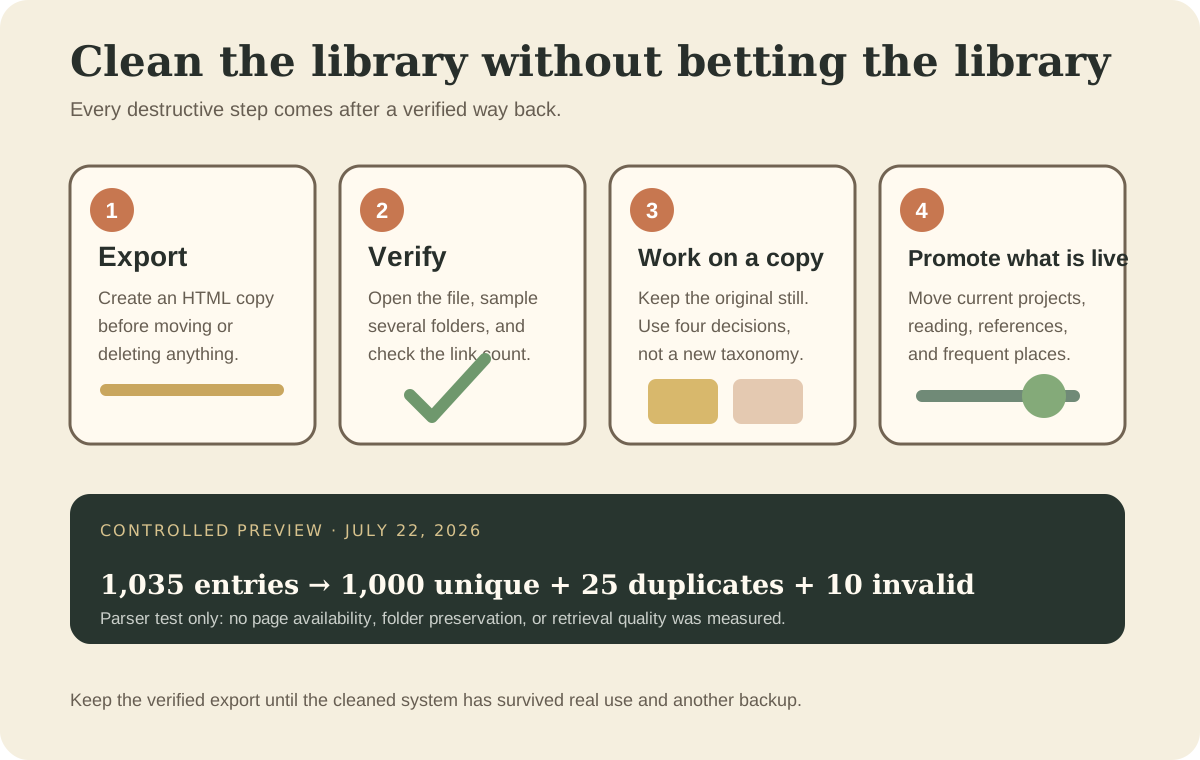
The raw result summary is available as CSV. The result is reproducible from the generation rules above and the current parser in frontend/src/lib/bookmark-import-html.ts.
This is a parser exercise, not a user study or performance benchmark. We did not fetch the pages, preserve the original folder hierarchy, measure whether people could retrieve the links later, or modify a production account. The synthetic URLs were deliberately regular, so the test says nothing about semantic duplicates or the messiness of a real export.
The useful conclusion is narrow: a large HTML list can be inspected without deleting the source library, and exact duplicate or invalid candidates can be separated before anyone makes a retention decision.
Know what a browser import may change
Importing the verified file into another browser is a practical restore test, but it is not always a perfect round trip. Chrome says imported bookmarks can be placed in an imported or “Other bookmarks” folder depending on the existing library. Mozilla warns that HTML imports are added to existing Firefox bookmarks and can therefore create duplicates. Mozilla’s current HTML import guide describes that behavior.
Before treating an imported copy as the new master, check:
- whether nested folders still make sense;
- whether titles and URLs survived;
- whether duplicates were added beside existing bookmarks;
- whether browser-specific metadata, tags, descriptions, or shortcuts were lost;
- whether the import changed only the intended profile.
The HTML file remains valuable even when metadata does not make the trip. It preserves a portable inventory and lets you return to the original evidence.
Where Nodus Vault fits—and where it does not
Nodus Vault can preview pasted URLs or a browser HTML export. The current preview shows total candidates, valid unique URLs, exact duplicates skipped, and invalid entries. Its import records URL and title, sends accepted links to Triage, and lets later use decide whether a link belongs in Reading List, Archive, a collection, or no longer in the active library.
It is not currently a one-click cleaner for thousands of bookmarks. It does not verify that every page is live, find every semantic duplicate, preserve the browser’s folder hierarchy, or decide what deserves deletion. A large library should therefore not be moved into Nodus under the assumption that the product will finish the cleanup automatically.
A safer use is to keep the verified browser export as the historical record, choose a smaller set of active URLs, and paste those into the importer in reviewable batches. Once they enter Triage, apply the same four decisions described above. If later you remember only an idea rather than a title, use the workflow for finding a saved link from partial memory.
That limitation is part of the method. Moving 3,000 old links into a new app without deciding what changed merely relocates the pile.
Stop when the library is trustworthy again
A clean bookmark library does not need to be small, perfectly tagged, or free of every obsolete address. It needs a verified way back, a visible active set, and fewer links pretending to have the same priority.
Keep the original export. Promote what has a current job. Review uncertain history when real use provides context. Delete only after the reference is recoverable or genuinely no longer matters.
If you want a separate working surface for the links that are active now, start with Nodus Vault and import a small, deliberate set—not the entire past in one click.