

Guides
How to Transfer Chrome Bookmarks to Another Profile (Without Sync)
Move Chrome bookmarks between profiles with an HTML export, protect both libraries, and verify folders and duplicates before deleting the old profile.
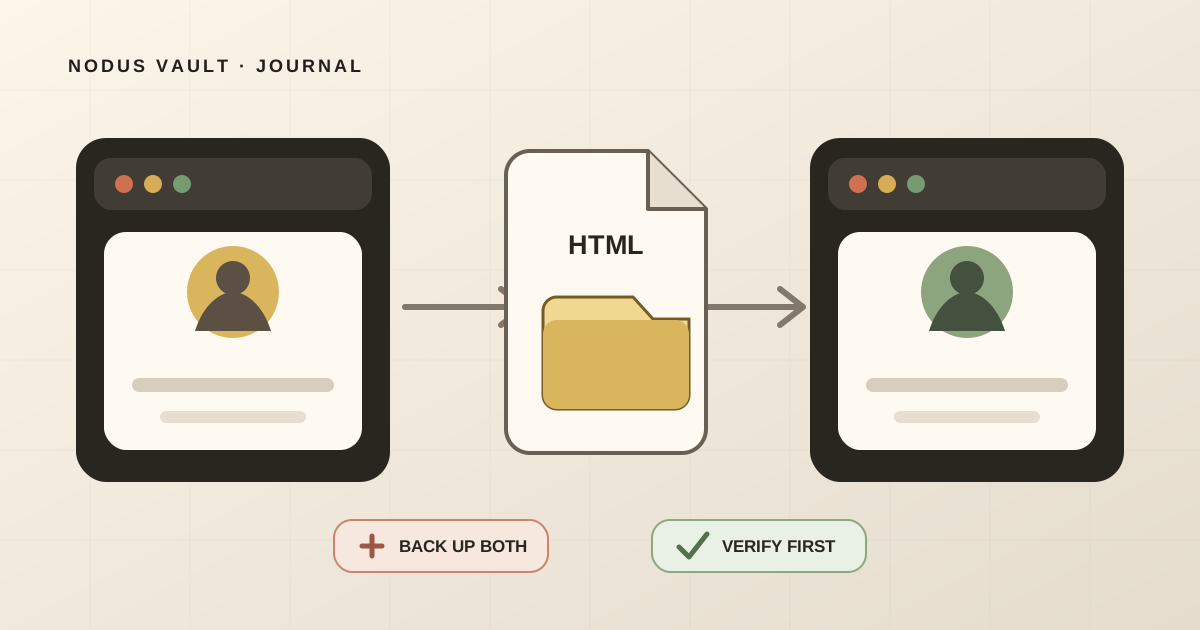
To transfer Chrome bookmarks to another profile without turning on sync, export the bookmarks from the source profile as an HTML file, back up the destination profile the same way, and import the source file into the destination. Keep both exports until you have checked the imported folders, opened a sample of links, and reviewed duplicates.
That method moves bookmarks. It does not copy the whole Chrome profile, and it does not require the two profiles to use the same Google account.
A Chrome profile and a Google account are not the same thing
A Chrome profile is a separate browser space. Google describes profiles as a way to keep information such as bookmarks, history, passwords, and settings separate. A profile can be signed in to a Google account, but the browser profile and the account are still different concepts.
This distinction prevents two common mistakes:
- turning on sync only because you need a one-time bookmark transfer;
- expecting a bookmarks file to include passwords, history, extensions, cookies, open tabs, or every Chrome setting.
Google documents the current profile controls in Manage Chrome with multiple profiles. The HTML route in this guide deliberately handles only bookmarks. If your real goal is to move all account data, stop and define each data type before changing either profile.
Export the bookmarks from the source profile
First, make sure you are working in the profile that contains the bookmarks you want to move. The profile avatar near the top-right corner of Chrome helps confirm that; a distinct profile name and color make mistakes less likely.
On a desktop computer:
- Open the source Chrome profile.
- Select More.
- Select Bookmarks and lists, then Bookmark Manager.
- In Bookmark Manager, select More.
- Select Export Bookmarks.
- Save the HTML file with a name that identifies the source and date, such as
chrome-personal-before-transfer-2026-07-27.html.
Those controls follow Google’s current Chrome bookmark import and export instructions, checked on July 27, 2026. Menu labels can change, so use the official page if your version looks different.
Do not edit the export. Open it once in a browser to confirm that it contains recognizable folders and links, then keep the file unchanged as the source backup.
Back up the destination before importing
The target profile may already contain bookmarks you care about. Export it before adding anything:
- Switch to the destination profile.
- Confirm the profile name and avatar.
- Repeat the Bookmark Manager export.
- Name this file for the destination and date, such as
chrome-work-before-transfer-2026-07-27.html. - Store the two exports where you can tell them apart.
This second file is not redundant. It records the destination before the merge. If the imported result is confusing, you can compare the two original libraries without guessing which bookmark came from where.
For a valuable collection, copy both files to storage outside the Chrome profile directory. Sync can make bookmarks available elsewhere, but it can also propagate edits and deletions. A dated HTML export is a separate recovery point.
Import the source file into the destination profile
Stay in the destination profile. Then:
- Select More.
- Select Bookmarks and lists.
- Select Import bookmarks and settings.
- Choose Bookmarks HTML file if Chrome asks for an import source.
- Select the source profile’s HTML export—not the destination backup.
- Complete the import, then open Bookmark Manager.
Google says that if the destination had no bookmarks, imported items appear on the bookmarks bar. If it already had bookmarks, Chrome adds the imported items to Other bookmarks. Start there if the transfer seems to have disappeared.
Do not immediately drag imported folders into the destination’s existing structure. First inspect the result as one recognizable batch. A short pause makes duplicate and folder decisions easier to reverse.
Verify the transfer before deleting the old profile
The import dialog completing is not enough evidence. Check the destination while the source profile and both exports still exist.
Use this sequence:
- Find the imported root. Look in Other bookmarks and the bookmarks bar.
- Compare the main folders. Confirm that the source’s top-level work, personal, and reading groups are represented.
- Inspect nested folders. Open at least one second-level folder rather than checking titles only.
- Open a sample. Test a link near the beginning, middle, and end of the imported set. For a small or high-value library, check every item.
- Check sensitive destinations. Internal dashboards and signed-in tools may still require the correct account and permissions.
- Export the destination again. Give the post-import file a new name. Do not overwrite either pre-transfer backup.
Chrome’s official page explains how to import and where the result is placed. It does not turn that into a verification guarantee. Folder comparison and link sampling are your acceptance test.
Only remove the old profile after the destination passes the check and you know that the transfer covered everything you intended to move. Google’s profile-removal warning says that deleting a profile from Chrome erases that profile’s bookmarks, history, passwords, and other settings from the computer, so treat removal as a separate, destructive decision.
We tested a controlled 15-entry transfer audit
We built two small Netscape bookmark HTML files for this article: a 10-bookmark source profile and a 5-bookmark destination profile. The destination already contained two exact URLs from the source.
On July 27, 2026, we processed both files with the same HTML preview parser used by the current Nodus Vault bookmark import. The result was:
| Audit result | Count |
|---|---|
| Entries across both files | 15 |
| Valid unique URLs | 13 |
| Exact duplicate URLs skipped by the preview | 2 |
| Invalid entries | 0 |

The complete transfer audit sheet lists every title, URL, source folder, and overlap decision.
This is a parser test, not a Chrome performance benchmark or a claim about every library. It proves that the controlled files contain the stated URLs and that the preview identifies their two exact overlaps. The Nodus import preview extracts titles and HTTP or HTTPS URLs; it does not preserve the browser’s folder hierarchy. That is why folder verification must happen inside Chrome.
Handle duplicates after a safe import
An overlap does not mean the transfer failed. It means both profiles had a route to the same URL.
Start with exact URL duplicates. In our controlled set, Chrome’s import instructions and MDN’s Web Storage reference appeared in both files. Those are straightforward review candidates because the URLs match exactly.
Then consider near-duplicates more carefully:
- the same article with tracking parameters;
- HTTP and HTTPS versions;
- a homepage and a specific page on the same site;
- two documents with similar titles but different paths;
- a page saved once in a project folder and once as a durable reference.
Do not mass-delete by title or domain. Context can make two visually similar bookmarks useful in different places, and different URLs can lead to different content. If the imported collection is large, use the free Bookmark Health Check to inspect the HTML file locally for exact and possible duplicates before making changes. It is a read-only analysis, not an automatic merge.
For a larger cleanup, follow the separate process for cleaning thousands of bookmarks without losing anything. Transfer first, verify second, simplify third.
What this method does not transfer
A bookmarks HTML file should be treated as a portable list of saved links and folders, not a profile clone. This workflow does not promise to transfer:
- browsing history;
- saved passwords or passkeys;
- extensions and their data;
- cookies or signed-in sessions;
- open tabs and tab groups;
- autofill data;
- permissions and site settings;
- browser themes or every preference;
- offline copies of the linked pages.
Do not try to fill those gaps by blindly copying Chrome’s raw profile folder while Chrome is running. Internal profile files can be version-dependent, locked, partly synchronized, or tied to operating-system protection. Use Google’s current controls for each data category and keep bookmark transfer as one bounded operation.
If you need Google-account data rather than only local Chrome bookmarks, review Google’s current Chrome data export guidance before deciding which export route matches the job.
When the destination is another computer or account
The same HTML handoff works when the destination profile is on another computer:
- Export on the source computer.
- Copy the HTML file through a storage method you trust.
- Back up the destination profile on the other computer.
- Import there and run the same checks.
Treat the file according to its contents. Bookmark titles and URLs can reveal employers, medical research, travel plans, internal tools, or private interests. Avoid public transfer links for a sensitive library, remove temporary copies when the verified migration is complete, and keep the recovery copy somewhere intentional.
If the destination profile uses another Google account, the bookmark steps do not change. The file is the handoff. Signing in is not required for the one-time import, although any websites behind the bookmarks will still enforce their own accounts and access controls.
Where Nodus Vault fits—and where it does not
Nodus Vault is not a Chrome profile migrator. It does not transfer passwords, history, extensions, sessions, or profile settings.
After you have reviewed a browser export, Nodus can accept that bookmarks HTML file, show a preview of valid unique links, skip exact URL duplicates in the preview, and add the approved links to Triage. From there, links can move into a reading list, a reference library, an active collection, or the archive; search and Daily Check help useful material return later.
That is a different job from recreating Chrome’s folder tree. If your only goal is to make the destination Chrome profile look like the source, stay with Chrome’s export, import, and verification controls. If the transfer exposes that your links are scattered across browsers and apps, the guide to organizing saved links across apps explains how to choose a central library without importing every item blindly.
If the second job is yours, try Nodus Vault with the reviewed set—not with an uninspected profile dump.
Keep both originals until the destination is trustworthy
The safe sequence is simple:
- Export the source profile.
- Export the destination profile.
- Import the source HTML into the destination.
- Find the imported batch and verify folders and links.
- Review duplicates without mass deletion.
- Export the merged destination as a third file.
- Remove or change the old profile only after the result passes.
The HTML file makes Chrome bookmarks portable. The two backups and the verification step make the transfer recoverable.