

Guides
How to Import Bookmarks from CSV or Excel into Chrome Without an Extension
Turn a spreadsheet or URL list into bookmark HTML, review folders, duplicates, and invalid rows, then import it into Chrome without an extension.
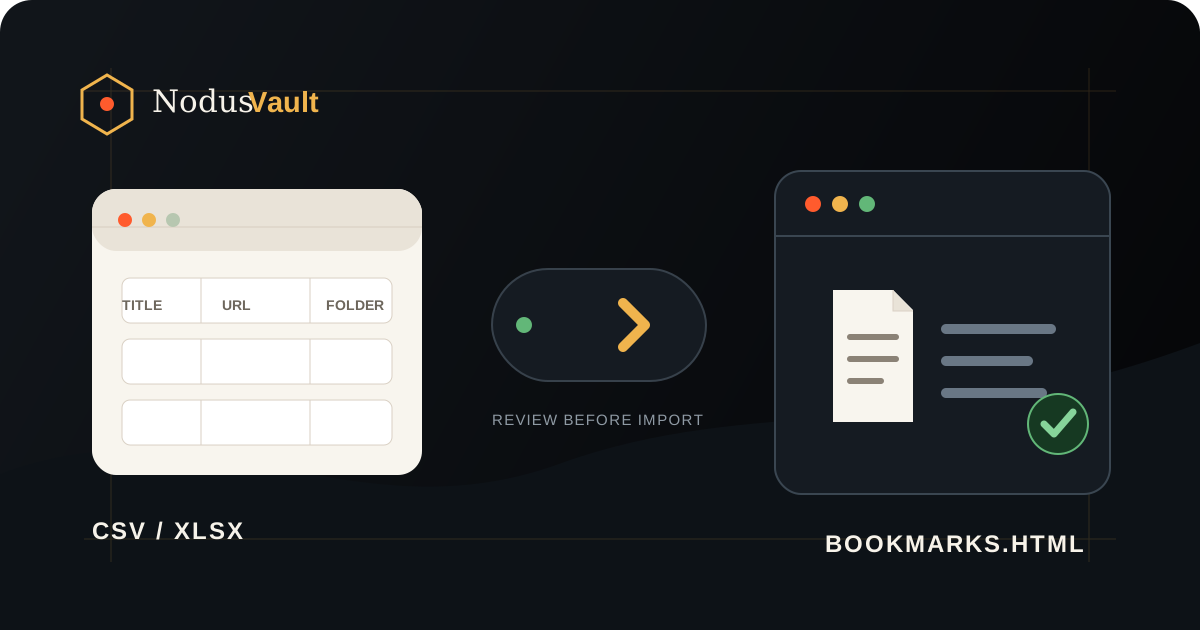
Chrome cannot import a bookmark spreadsheet directly. The reliable route is to keep the original workbook, save the relevant sheet as CSV, convert that CSV into browser-bookmark HTML, review the result, and import the HTML file into Chrome. No extension is required.
That format change is the important part. Chrome's own instructions ask for an HTML file when bookmarks come from a file; changing a filename from .csv to .html does not create the structure Chrome expects. Google's current Chrome help explains the HTML import path.
Most official browser instructions begin after that HTML file already exists. This guide covers the missing spreadsheet-to-HTML step and shows the observed output from a five-row check containing a blank title, nested folders, a duplicate, and an invalid URL.
Back up Chrome before importing anything
An import adds bookmarks to the profile that is currently open. Before testing a new file, make sure the profile avatar in Chrome is the one you intend to change, then export its existing bookmarks:
- Open Chrome's Bookmark Manager.
- Open the manager's menu.
- Choose Export bookmarks and keep the resulting HTML file somewhere safe.
Google documents the same export flow and says Chrome exports bookmarks as HTML. It also explains that, when a profile already has bookmarks, imported items are added under Other bookmarks. The backup gives you a known-good file if the spreadsheet contains an unexpected folder or too many rows. See Google's import and export instructions.
Do not delete the workbook or the backup after the first successful import. Keep both until you have opened a sample of the imported links and checked the folders.
Prepare the spreadsheet
Use one row per bookmark. Only the URL is required, but a small, explicit header makes the conversion easier to inspect:
| Column | Required? | What it becomes |
|---|---|---|
url | Yes | The bookmark destination |
title | No | The name shown in Chrome |
folder_path | No | Nested folders such as Work / Research |
added_at | No | The saved date when it can be parsed |
A plain list with one https:// URL per line also works. For a spreadsheet, this is a useful minimal example:
title,url,folder_path,added_at
Chrome import guide,https://support.google.com/chrome/answer/96816,Reference / Browsers,2026-07-30
Research brief,https://example.com/research/brief,Work / Research,2026-07-28
If the source is an Excel .xlsx workbook, save a copy of the active sheet as CSV first. Microsoft warns that text formats remove workbook formatting and that CSV saves only the active sheet, which is another reason to preserve the original .xlsx. Microsoft documents the CSV export and its limits.
In Google Sheets, use File → Download and choose CSV. Google's help confirms that Sheets can download a copy in CSV and other formats. See the Google Sheets export guidance.
The converter accepts .csv, .tsv, and .txt files up to 8 MB or 50,000 rows. It does not accept .xlsx directly. It recognizes comma-, semicolon-, and tab-separated rows, which matters when Excel uses the computer's regional list separator.
Convert the CSV into bookmark HTML
Open the free CSV to browser bookmarks converter. You can paste rows or choose a file from your device.
- Load the CSV, TSV, TXT, or pasted URL list.
- Confirm which column is the URL. Check the suggested mappings for title, folder path, and date.
- Review the counts for ready bookmarks, exact duplicates, invalid rows, and fallback titles.
- Leave duplicate removal off unless deleting repeated URLs is part of your plan.
- Download Browser bookmarks HTML.
Parsing, preview, and HTML creation happen in the browser. The tool does not upload the list, visit its URLs, or modify the source file. If a title is blank, it builds a readable fallback from the URL instead of fetching the page.
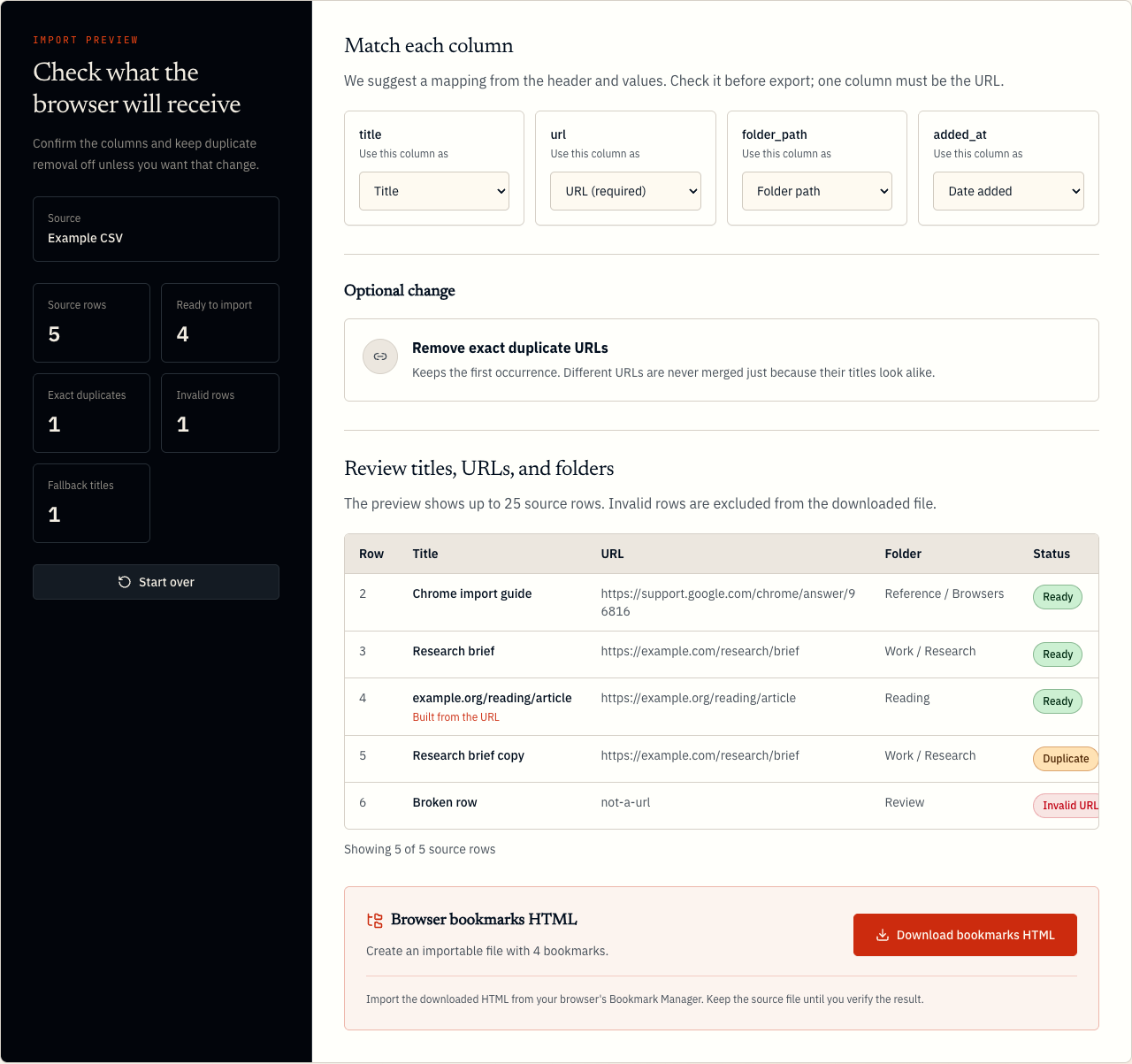
The localized tool preview used for this article on July 31, 2026. Duplicate removal is off, so the duplicate remains in the four-bookmark output.
Reproduce the five-row check
The screenshot is not a hand-built mockup. It comes from the tool's built-in example, which anyone can load with Try an example:
title,url,folder_path,added_at
Chrome import guide,https://support.google.com/chrome/answer/96816,Reference / Browsers,2026-07-30
Research brief,https://example.com/research/brief,Work / Research,2026-07-28
,https://example.org/reading/article,Reading,
Research brief copy,https://example.com/research/brief,Work / Research,2026-07-28
Broken row,not-a-url,Review,
The observed result was:
| Check | Result | Why |
|---|---|---|
| Source rows | 5 | The header is not counted as a bookmark |
| Ready to import | 4 | Four rows contain valid HTTP or HTTPS URLs |
| Exact duplicates | 1 | The research URL appears twice |
| Invalid rows | 1 | not-a-url is not imported |
| Fallback titles | 1 | The blank title becomes example.org/reading/article |
With duplicate removal left off, the downloaded HTML contains four bookmarks: the repeated URL is preserved and the invalid row is excluded. Turning removal on keeps the first occurrence and produces three bookmarks. Different URLs are not merged merely because their titles look alike.
This check also exercises nested folders, a missing title, a duplicate, and a failure case. It is more useful than testing five perfect rows, because those are the places where a spreadsheet conversion usually becomes hard to trust.
Import the HTML file into Chrome
After downloading browser-bookmarks.html:
- Open Chrome on a computer and confirm the correct profile again.
- Open More → Bookmarks and lists → Import bookmarks and settings.
- Choose the downloaded HTML file and complete the import.
Chrome's wording can vary slightly by platform. The Bookmark Manager also exposes Import Bookmarks from HTML file under its organize menu. Both current paths are documented by Google. Follow the official Chrome instructions if a menu label has moved.
If the profile already contained bookmarks, look under Other bookmarks or a newly imported folder. Then verify the result before reorganizing anything:
- compare the imported count with the converter's “Ready to import” count;
- open a few links from the first, middle, and last rows;
- check one nested folder path;
- confirm that a blank source title received the expected URL-based label;
- if duplicate removal was enabled, confirm which occurrence was kept.
For a large library, resist the urge to clean it during the same pass. First establish that the transfer is complete. The reversible bookmark cleanup workflow separates backup, verification, and deletion for exactly this reason.
Fix the common failure modes
Chrome rejects the file
Confirm that you downloaded the generated .html file. A renamed .csv remains CSV content and is not a bookmark export. If necessary, run the source through the converter again and keep the generated filename unchanged.
The converter will not open the Excel file
.xlsx is not one of the accepted inputs. In Excel, save the relevant worksheet as CSV; in Google Sheets, download it as CSV. Keep the original workbook because formulas, multiple sheets, and formatting are outside the bookmark import.
The wrong values appear as titles or URLs
Return to the mapping step. A header such as website, link, or address may be recognized automatically, but the preview is the final authority. One column must be assigned to URL. Title, folder, and date are optional.
Accented text or commas split a row
Save the file as UTF-8 CSV when that choice is available. Values that contain commas should be quoted by the spreadsheet application. If the system exports semicolon-separated CSV, the converter can detect that delimiter; a TSV file is also accepted.
Some rows are marked invalid
The converter accepts only http:// and https:// destinations. Empty cells, incomplete domains, file:// paths, and browser-internal addresses stay visible in the preview but are left out of the downloaded file. Correct those rows in the source rather than hiding the warning.
The duplicate number is higher than expected
Duplicate detection compares normalized URLs. Query strings remain significant, so two genuinely different addresses are not merged. When removal is enabled, the first occurrence is kept. If you need a broader review after import, use the duplicate bookmark checker workflow instead of treating similar titles as proof of duplication.
Know what the conversion does not do
This route creates a file Chrome can import; it does not edit the live Chrome library, open pages to discover better titles, or decide which similar links are redundant. Those limits are deliberate. They keep the conversion reviewable and avoid sending a private list of URLs to a server.
The generated HTML follows the browser-bookmark structure and is also intended for Edge, Brave, Firefox, and Safari, although each browser puts its import command in a different menu. Firefox, for example, documents adding bookmarks from an HTML file and warns that an import can create duplicates. Mozilla's current HTML import guide covers that behavior.
Once the Chrome import is verified, keep the HTML as a portable snapshot. If you later need to audit the browser library in a spreadsheet, the companion guide to exporting Chrome bookmarks to CSV or Excel explains the reverse direction and its controlled conversion test.