

Guides
How to Export Chrome Bookmarks to CSV or Excel Without an Extension
Export Chrome bookmarks as HTML, convert them locally to CSV, and verify titles, URLs, folders, and dates in Excel or Google Sheets.
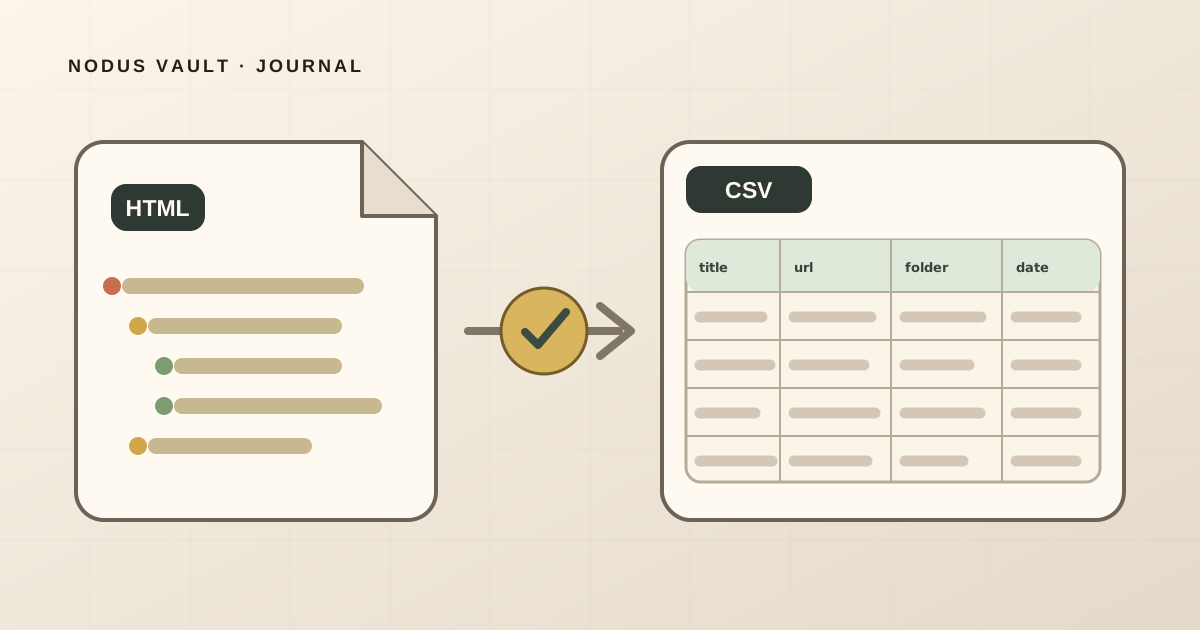
Chrome does not have a native Export to CSV button. It exports bookmarks as an HTML file. Keep that HTML as your browser-compatible backup, then convert a copy to CSV when you need to sort, filter, audit, or work with the list in Excel or Google Sheets.
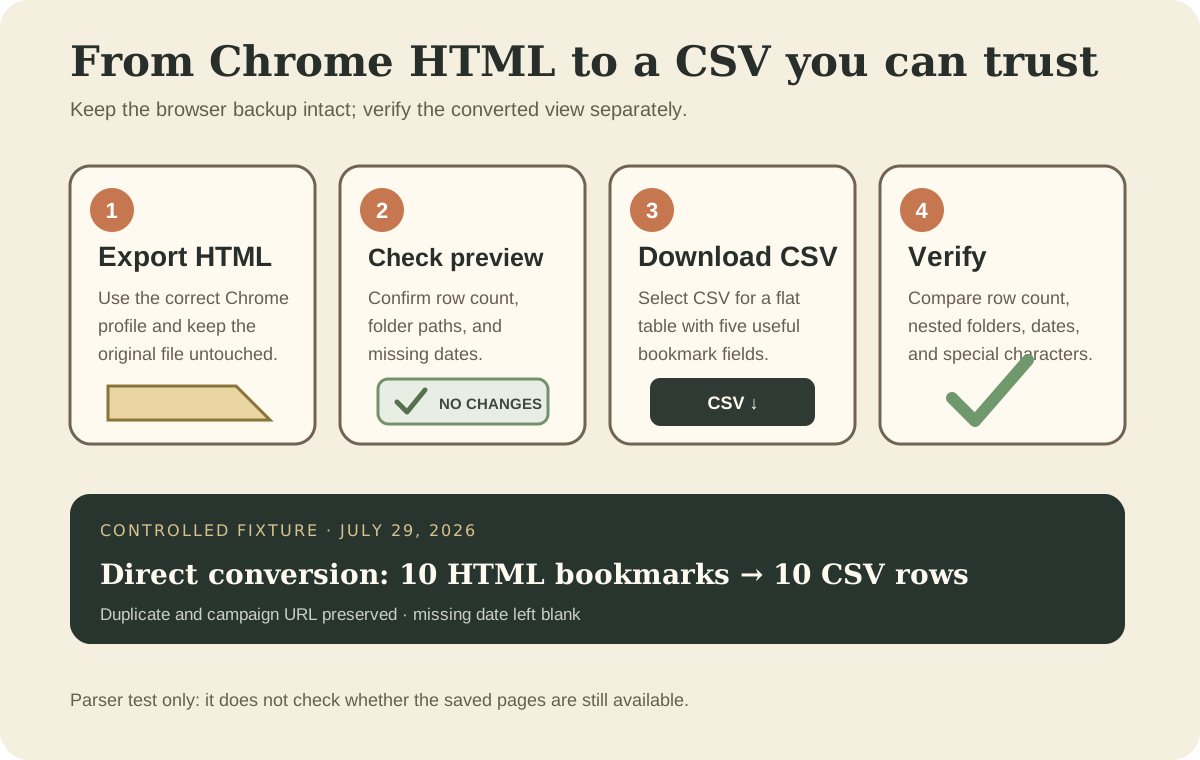
The safe version of the workflow is:
- Export the bookmarks from the correct Chrome profile as HTML.
- Keep the original HTML file unchanged.
- Convert it locally to CSV.
- Check the row count and a few nested folders before relying on the spreadsheet.
CSV is a spreadsheet-friendly view of the library, not a replacement for the original bookmark backup.
Chrome's official help stops at the HTML export. This article covers the missing second half—turning that HTML into a spreadsheet—and documents a controlled ten-bookmark result so you can verify nested folders, duplicates, missing dates, special characters, and a formula-like title instead of trusting a black-box conversion.
Export the bookmarks from the correct Chrome profile
Open the Chrome profile whose bookmarks you want to export. This matters when work, personal, and project profiles have separate libraries: one successful export does not include the bookmarks that live in another profile.
Then:
- Open Chrome's three-dot menu.
- Select Bookmarks and lists, then Bookmark Manager.
- In Bookmark Manager, open its three-dot menu.
- Select Export bookmarks.
- Save the resulting
.htmlfile somewhere you can identify later.
Google's current instructions confirm that Chrome exports bookmarks as HTML for transfer to another browser. The official Chrome import and export guide is the best place to check the menu path if the interface changes.
Rename the file before creating more exports. A name such as chrome-personal-bookmarks-2026-07-29.html records the source and date; bookmarks (4).html does not. Open the file once in a browser and sample links from the bookmark bar, a deeply nested folder, and the bottom of the list. That quick check catches the wrong-profile export before the mistake reaches the spreadsheet.
If the goal is to move bookmarks into another Chrome profile, stop here and use the HTML file. The separate guide to transferring Chrome bookmarks between profiles covers that restore workflow. CSV is useful when the destination is a table rather than another browser.
Convert the Chrome HTML file to CSV
Open the free Chrome Bookmarks to CSV converter. It reads the export in your browser, does not require an account, and leaves the source file unchanged.
- Choose the Chrome HTML file.
- Review the bookmark, folder, domain, and missing-date counts.
- Sample the five-column preview.
- Download the CSV.
This converter has no cleanup controls. It preserves every parsed bookmark, the original order, exact duplicate URLs, and URL parameters. That makes its job deliberately narrow: HTML goes in, a faithful CSV view comes out. If you later want to remove duplicates or campaign codes, make that a separate, reviewable step with the Bookmark Cleaner.
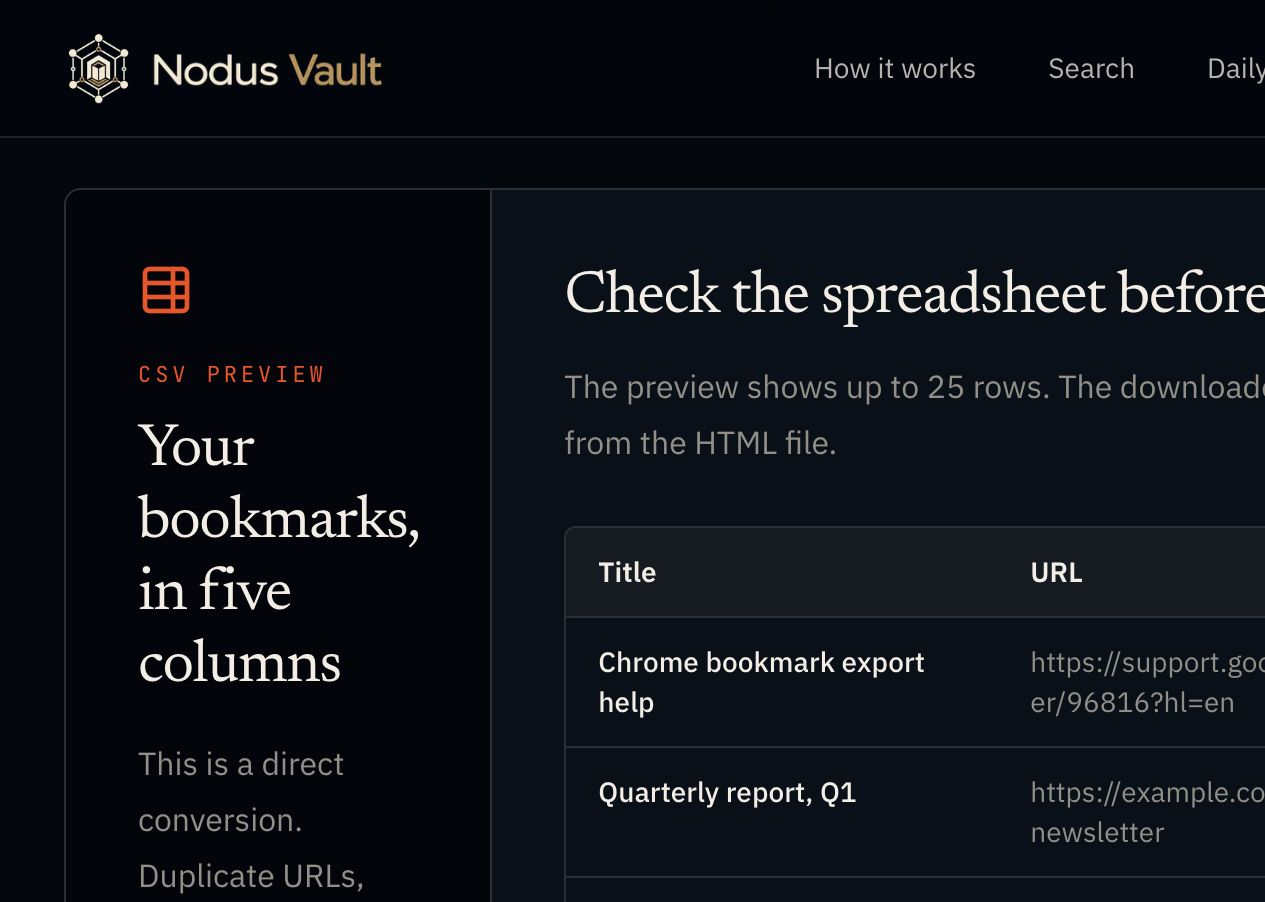
The tool currently accepts bookmark HTML files up to 8 MB. If a larger export is rejected, do not split the only backup by editing it. Keep the original intact and create separate exports from the relevant Chrome profiles or use a local conversion method that can handle the full file.
What the CSV contains
The current Nodus CSV export has five columns:
| Column | What it contains | What to check |
|---|---|---|
title | The bookmark's saved title | Quotes, commas, and non-English characters |
url | The saved address | Parameters that may identify a specific page |
folder_path | Nested folders joined into one path | Deep folders and folders with similar names |
domain | The hostname extracted from web URLs | Blank cells for unsupported or unusual URLs |
added_at | The date when the bookmark was added, in ISO format when available | Blank cells when the export has no usable date |
The CSV does not recreate Chrome's visual folder tree. Instead, a bookmark in Bookmarks bar → Research → Sources becomes a row whose folder_path is Bookmarks bar / Research / Sources. That makes folders sortable without pretending a flat file is still a browser library.
An empty added_at cell is not a conversion failure by itself. Chrome exports and imported libraries do not always contain a usable add date for every entry. Do not replace missing dates with the day you ran the conversion; that would turn “unknown” into a false history.
We checked the conversion with ten deliberately awkward bookmarks
On July 29, 2026, we ran a controlled HTML fixture through the current parser and CSV exporter. The file contains ten bookmarks across nested folders, plus an empty folder. It deliberately includes:
- a title with a comma;
- quotation marks and the word “Café”;
- a title beginning with
=, which a spreadsheet could otherwise interpret as a formula; - one URL with a campaign parameter;
- one exact duplicate URL;
- one bookmark without an add date.
You can open the synthetic Chrome bookmark file, save it locally, and repeat the test. It contains public documentation links and example.com addresses, not personal browsing data.
The result contained ten bookmark rows. The exact duplicate and campaign URL remained, as intended. The nested folder path, comma, quotes, and Unicode title survived. The missing date stayed blank. The formula-like title was prefixed with an apostrophe in the CSV cell so it would be treated as text instead of executable spreadsheet input.
The regression test checks the five-column header, all ten rows, duplicate preservation, and the unchanged campaign URL. This is a parser test, not a study of every Chrome export. We did not measure Excel versions, very large real-world libraries, broken links, semantic duplicates, or whether each page was still available. The result supports a narrower claim: the current converter can turn this known HTML structure into the documented five-column CSV while preserving the original file.
Open the CSV in Excel
The generated file uses UTF-8 and includes a byte order mark. Microsoft says Excel can normally open UTF-8 CSV files directly when that marker is present. Its official CSV and UTF-8 guidance also documents the more controlled route through Data → Get Data → From File → From Text/CSV.
Start by opening the file normally. If all data appears in one column, characters look wrong, or Excel guesses a date format you do not want:
- Create a blank workbook.
- Use Data → From Text/CSV.
- Select the downloaded CSV.
- Confirm UTF-8 encoding and comma as the delimiter.
- Preview the columns before loading them.
After import, freeze the header and enable filters. Compare the spreadsheet's data-row count with the bookmark-row count shown before download. Then sample one bookmark with a comma in its title, one nested folder, one non-ASCII title, and the entry without a date.
If you need Excel formulas, formatting, or multiple sheets, save a working copy as .xlsx. Keep the CSV as the neutral converted export and the HTML as the browser-compatible source.
Import the CSV into Google Sheets
In a blank spreadsheet, use File → Import → Upload, choose the CSV, select the import location, and confirm the separator. Google's official data-ingestion instructions describe those controls.
Importing into Sheets is different from converting in the Nodus tool. The HTML-to-CSV conversion happens locally in your browser. Uploading the CSV to Google Sheets sends that CSV to your Google account, subject to Google's storage and sharing settings. If bookmark titles or URLs expose private projects, internal systems, clients, or research, review the file before uploading it to any cloud spreadsheet.
Run the same checks you would in Excel: row count, header names, nested folder paths, non-English characters, and blank dates. If Sheets infers an unwanted format, set the relevant column to plain text before further editing.
Keep the HTML even after the spreadsheet looks right
The HTML and CSV serve different jobs:
| Keep this file | Use it for |
|---|---|
| Original Chrome HTML | Browser import, rollback, and evidence of the source library |
| Converted CSV | Sorting, filtering, auditing, and spreadsheet work |
Optional .xlsx or Google Sheet | Formulas, formatting, collaboration, and analysis |
A bookmark export stores links and some organization metadata. It is not an offline archive of the pages, and a CSV cannot prove that every URL still works. It may also omit browser-specific descriptions, shortcuts, icons, or other metadata that do not fit the five exported columns.
Keep the original HTML until you have verified the spreadsheet and any later browser import. If the conversion is the first step in a broader cleanup, use the Bookmark Health Check to inspect the original export before deleting anything, then follow the reversible method for cleaning up a large bookmark library.
If your starting point is a spreadsheet and the destination is Chrome, use the reverse guide to importing bookmarks from CSV or Excel into Chrome. The two workflows deliberately keep HTML as the handoff format the browser understands.
For the one-time conversion, use the Chrome Bookmarks to CSV converter: choose the correct profile, preserve the HTML, check the preview, and verify the CSV before building work on top of it.